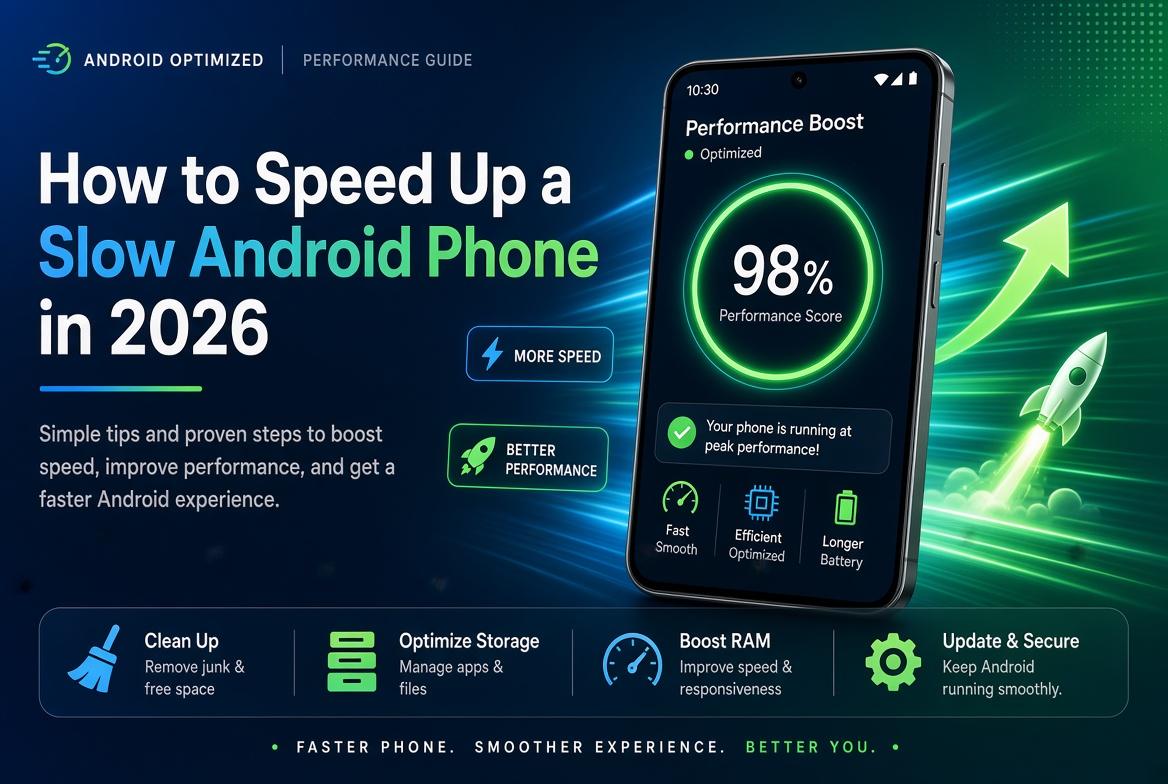
A slow Android phone is frustrating. Apps take forever to open, typing feels laggy, the keyboard stutters, and even simple tasks like opening Settings can feel painful. The good news is that most slow Android phones can be improved significantly without buying a new device.
This guide covers the most effective methods that still work in 2026, ordered from the simplest and safest to more advanced options. You don’t need to do everything — start from the top and stop when your phone feels fast enough again.
### 1. Restart Your Phone (The Simple First Step)
It sounds basic, but restarting clears temporary memory and stops background processes that have been running too long.
- Hold the power button and select **Restart**
- If the phone is very frozen, hold the power button for 20–30 seconds until it reboots
Do this at least once every few days if your phone feels sluggish.
### 2. Free Up Storage Space
Android slows down badly when storage is nearly full (especially when less than 10–15% is free).
**How to check:**
- Go to **Settings → Storage**
**What to delete:**
- Large unused apps
- Downloaded files and old APKs
- Screenshots and duplicate photos
- Cached data from apps (see next section)
- Videos you no longer need
**Quick tip:** Move photos and videos to Google Photos (with backup enabled) or a computer, then delete them from the device.
### 3. Clear App Cache (Safe and Effective)
Cache files help apps load faster, but over time they can become corrupted or take up too much space.
**For individual apps:**
1. Go to **Settings → Apps**
2. Select an app (especially Chrome, Instagram, WhatsApp, Facebook, Games)
3. Tap **Storage → Clear Cache**
**Do not tap “Clear Data”** unless you want to reset the app (you will lose login information and settings).
Clear cache for the apps you use most. This often gives an immediate improvement.
### 4. Uninstall or Disable Unused Apps
Every installed app can run background processes, even if you never open it.
- Uninstall apps you don’t use
- For pre-installed apps you can’t remove, tap **Disable**
Pay special attention to:
- Duplicate apps (multiple browsers, galleries, or cleaners)
- Old games
- Free “cleaner” or “booster” apps (many of these make the problem worse)
### 5. Limit Background Activity
Many apps keep running in the background and drain both battery and performance.
**On most Android phones:**
- Settings → Apps → Special app access → Battery optimization
- Put rarely used apps on **Optimized** or **Restricted**
Also check:
- Settings → Battery → Battery usage
Look for apps consuming high battery in the background and restrict them.
### 6. Turn Off Animations (Noticeable Speed Boost)
Android animations look smooth but cost performance, especially on older phones.
1. Go to **Settings → About phone**
2. Tap **Build number** 7 times to enable Developer Options
3. Go back to **Settings → System → Developer options**
4. Find these three settings and set them to **0.5x** or **Animation off**:
- Window animation scale
- Transition animation scale
- Animator duration scale
Your phone will feel much snappier. You can turn animations back on later if you prefer the visual effects.
### 7. Update Apps and System Software
Outdated apps and old system versions often contain performance bugs.
- Open the **Google Play Store → Profile icon → Manage apps & device → Update all**
- Check **Settings → System → System update** (or Software update)
Install updates when available. Many performance improvements come through these updates.
### 8. Disable or Remove Widgets and Live Wallpapers
Widgets and live wallpapers constantly use memory and processing power.
- Remove unnecessary home screen widgets
- Switch to a static wallpaper
- Avoid heavy custom launchers if your phone is already slow
A clean home screen with the default launcher usually performs best.
### 9. Check for Malware or Aggressive Apps
Although less common than on computers, some apps can seriously slow down Android.
**Signs of a problem:**
- Sudden severe slowdown
- High battery drain
- Strange ads appearing outside apps
- Apps you don’t remember installing
**What to do:**
- Run a scan with Google Play Protect (Play Store → Profile → Play Protect)
- Uninstall any suspicious apps
- Avoid installing apps from unknown sources
### 10. Reset App Preferences (Useful If Things Feel Broken)
This won’t delete your data but can fix permission and default settings issues.
- Go to **Settings → System → Reset options → Reset app preferences**
- Confirm
### 11. Factory Reset (Last Resort)
If you’ve tried everything above and the phone is still very slow, a factory reset often brings it back to life.
**Before you reset:**
- Back up photos, videos, contacts, and important files
- Note down any important app logins
**How to reset:**
- Settings → System → Reset options → Erase all data (factory reset)
After the reset, set up the phone as new and only install the apps you actually need. Avoid restoring a full backup of apps and data if possible — that can bring the slowdown back.
### Extra Tips for 2026 Android Phones
- Avoid filling the phone with too many home screen pages
- Don’t install multiple “cleaner,” “booster,” or “antivirus” apps — they usually hurt performance
- Keep at least 15–20% storage free
- Restart your phone regularly
- Consider using Lite versions of heavy apps (Facebook Lite, Messenger Lite, etc.) when available
### When It’s Time to Consider a New Phone
If your phone is several years old, has very little RAM (3GB or less), and remains slow even after a factory reset, hardware limitations may be the real issue. In that case, the steps above will still help, but a newer device will give a much bigger improvement.
### Final Checklist
- [ ] Restarted the phone
- [ ] Freed up storage space
- [ ] Cleared cache of major apps
- [ ] Removed unused apps
- [ ] Restricted background activity
- [ ] Reduced or disabled animations
- [ ] Updated apps and system
- [ ] Removed heavy widgets and live wallpapers
Most people see a clear difference after doing the first six or seven steps.
A slow Android phone is usually not permanent. With a bit of cleaning and the right settings, many devices feel significantly faster again.
Start with the easy steps today and work your way down the list. Your phone should feel lighter and more responsive.

Leave a comment
Your email address will not be published. Required fields are marked *