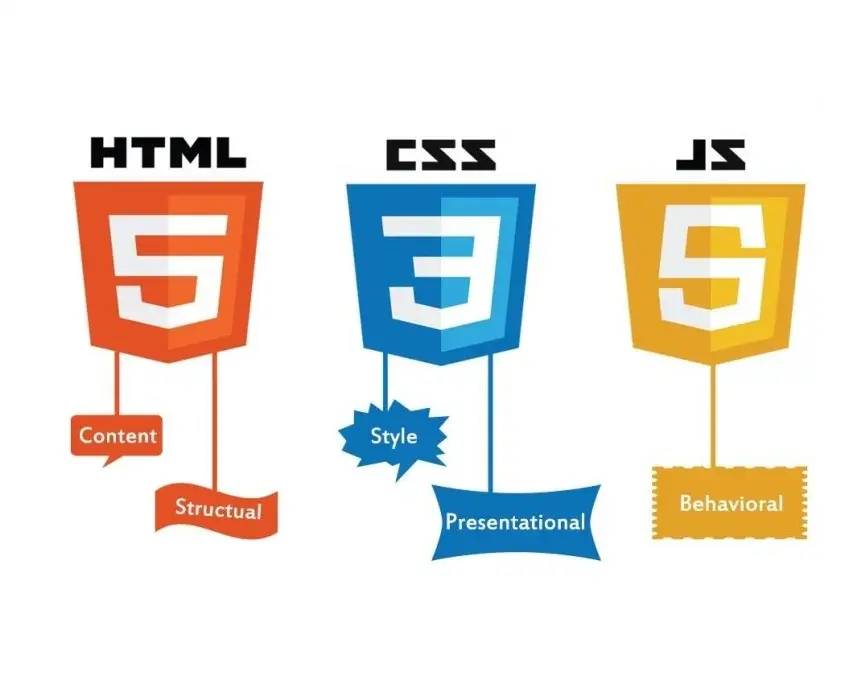
Not everyone who wants a website wants to learn HTML, CSS, and JavaScript. And that’s completely fine. In 2026, you can build a good-looking, functional website without writing a single line of code.
Thanks to modern no-code tools, the process has become much easier and more powerful than it was even a few years ago. Whether you need a personal portfolio, a small business site, a blog, or a simple landing page, free tools can get the job done.
In this guide, I’ll show you the best free options available right now, what each one is good at, and which type of person should choose which tool.
### What “No-Code” Actually Means
No-code tools let you build websites using visual editors — drag-and-drop sections, click to change colors and text, and publish with a few clicks. Behind the scenes they still generate HTML, CSS, and JavaScript, but you never have to touch the code.
These tools are perfect if you:
- Want results fast
- Don’t enjoy coding
- Need a website for a business, portfolio, or event
- Want to test an idea before investing time in learning development
### Top Free No-Code Website Builders in 2026
Here are the strongest free options right now, based on ease of use, design quality, features, and limitations.
#### 1. Carrd (Best for Simple One-Page Sites)
**Best for:** Personal profiles, simple landing pages, link-in-bio pages, small portfolios.
**Why it’s great:**
- Extremely easy to use
- Clean, modern designs
- Very fast to publish
- Generous free plan for basic needs
**Free plan limitations:**
- Only one page per site
- Carrd branding at the bottom
- Limited custom domain options on free plan
**Who should use it:** Anyone who needs a simple, elegant one-page website quickly.
#### 2. WordPress.com (Best Free All-Rounder)
**Best for:** Blogs, small business sites, and people who may want more control later.
**Why it’s good:**
- Huge number of free themes
- Easy to add pages, posts, and menus
- Large community and lots of tutorials
- You can later move to self-hosted WordPress if needed
**Free plan limitations:**
- WordPress.com branding
- Limited themes and customization
- Can’t install most plugins on the free plan
- Storage and bandwidth limits
**Who should use it:** Beginners who want a traditional website structure (Home, About, Blog, Contact) without complexity.
#### 3. Google Sites (Best for Absolute Beginners & Teams)
**Best for:** Simple school projects, internal sites, basic business pages, and people who already use Google tools.
**Why it’s strong:**
- Completely free with no branding
- Very easy drag-and-drop editor
- Integrates well with Google Drive, Docs, and Forms
- Reliable Google hosting
**Limitations:**
- Design options are more basic
- Less flexible than other tools
- Not ideal for advanced marketing sites
**Who should use it:** Complete beginners, teachers, students, and small teams who want something simple and free forever.
#### 4. Framer (Free Plan) – Best for Modern, Design-Focused Sites
**Best for:** Beautiful personal sites, agency-style portfolios, and modern landing pages.
**Why people love it:**
- Excellent design quality
- Smooth animations and interactions
- Feels more premium than most free tools
- Growing free plan capabilities
**Free plan limitations:**
- Framer branding
- Limited number of pages and features
- Some advanced interactions locked behind paid plans
**Who should use it:** People who care a lot about visual design and want their site to look modern.
#### 5. Webflow (Free Plan) – Most Powerful (But Steeper Learning Curve)
**Best for:** People who want high design control without coding, and may later want to learn more advanced skills.
**Why it’s powerful:**
- Extremely flexible visual editor
- Professional-level design possibilities
- Clean code output
- Strong free plan for learning and small projects
**Limitations:**
- Harder to learn than Carrd or Google Sites
- Free plan has Webflow branding and limited CMS items
- Publishing options are restricted on the free plan
**Who should use it:** Beginners who are patient and want room to grow.
#### 6. Other Notable Free Options
- **Notion + Super (or similar)** – Turn a Notion page into a simple website
- **Typedream** – Good for clean, modern sites with a free tier
- **Mobile-friendly page builders** inside tools like Canva (useful for very simple needs)
### Quick Comparison Table
| Tool | Ease of Use | Design Quality | Best For | Free Plan Branding | Learning Curve |
|-----------------|-------------|----------------|---------------------------|--------------------|----------------|
| Carrd | Excellent | High | One-page sites | Yes | Very Low |
| Google Sites | Excellent | Basic | Simple pages & teams | No | Very Low |
| WordPress.com | Good | Good | Blogs & multi-page sites | Yes | Low |
| Framer | Good | Excellent | Modern visual sites | Yes | Medium |
| Webflow | Medium | Excellent | Advanced visual design | Yes | Medium-High |
### How to Choose the Right Free Tool
Ask yourself these questions:
1. **Do I only need one page?** → Start with Carrd.
2. **Do I want a blog or multiple pages?** → Try WordPress.com or Google Sites.
3. **Do I care a lot about modern design and animations?** → Look at Framer or Webflow.
4. **Do I want zero branding and maximum simplicity?** → Google Sites is hard to beat.
5. **Might I want to learn real web design later?** → Webflow gives you the most transferable skills.
### Important Limitations of Free Plans
Almost every free website builder has some restrictions:
- Their branding/logo on your site
- Limited bandwidth or storage
- Fewer templates or design options
- Restricted custom domain support
- Limited e-commerce or advanced features
For many personal projects, portfolios, and small information sites, these limitations are acceptable. When your needs grow, you can usually upgrade or move to a paid plan (or switch to coding).
### Tips for Getting Good Results with No-Code Tools
- Start with a clear goal (portfolio, business info, event page, etc.)
- Choose a clean template and customize it instead of building from a blank page
- Use high-quality free images (Unsplash, Pexels)
- Keep the design simple — less clutter almost always looks more professional
- Make sure the site is mobile-friendly (most modern tools handle this well)
- Add clear contact information or a call-to-action
### When You Should Consider Learning Code Instead
No-code tools are excellent, but they’re not perfect for every situation. You may want to learn HTML, CSS, and JavaScript if:
- You need complete design freedom
- You want to avoid platform limitations and branding
- You’re building something highly custom
- You plan to become a web developer
Many people start with no-code tools and later learn code when they hit the limits. That’s a perfectly valid path.
### Final Recommendation
- **Want the fastest result with minimal effort?** → Carrd or Google Sites
- **Want a classic multi-page website?** → WordPress.com
- **Want modern design and room to grow?** → Framer or Webflow
All of these tools are free to start and capable of producing real, usable websites in 2026.
You don’t need to be a developer to have a professional online presence anymore. Pick one tool, spend an afternoon building, and get your site online. You can always improve or switch tools later.

Leave a comment
Your email address will not be published. Required fields are marked *