How to Clear Cache on Android Without Deleting Your Important Files
If your Android phone has started feeling slower than usual, certain apps keep misbehaving, or you've noticed that an application is taking up an unusual amount of storage, you may have heard someone tell you to “clear the cache.”
But what exactly does that mean?
More importantly, will clearing the cache delete your photos, messages, or other important files?
Usually, clearing an app's cache does not delete your personal files. It removes temporary files that the application has stored on your device.
The process is simple, although the exact menus can be different depending on your Android phone.

Here's what you need to know.
What Is an App Cache?
When you use an application, it often stores temporary information on your phone.
For example, a social media application might temporarily save images you've already viewed so that they don't always have to be downloaded again.
A browser may store website resources.
A streaming application might keep temporary pieces of content.
These temporary files are generally called cache.
The idea is simple: keeping frequently used information nearby can help an application load certain things more quickly.
Over time, however, the cache can become quite large.
Does Clearing Cache Delete Your Photos?
This is one of the biggest concerns people have.
When you use the Clear cache option for an individual application, you're generally removing that application's temporary cached data.
It is different from Clear storage, Clear data, or similar options.
Those options can remove the application's stored data and may effectively reset the app.
So don't tap buttons randomly if you're unsure what they do.
Clear cache and Clear storage are not the same thing.
---
How to Clear Cache on Android
The exact steps vary between manufacturers, but the process is usually similar.
Step 1: Open Settings
Open the Settings application on your phone.
Step 2: Find Apps
Look for a section called something like:
Apps
Apps & notifications
App management
The name depends on your phone.
Step 3: Select the App
Find the application whose cache you want to clear.
For example, if your browser has been behaving strangely, select your browser.
Step 4: Open Storage
Tap an option such as:
Storage
or
Storage & cache
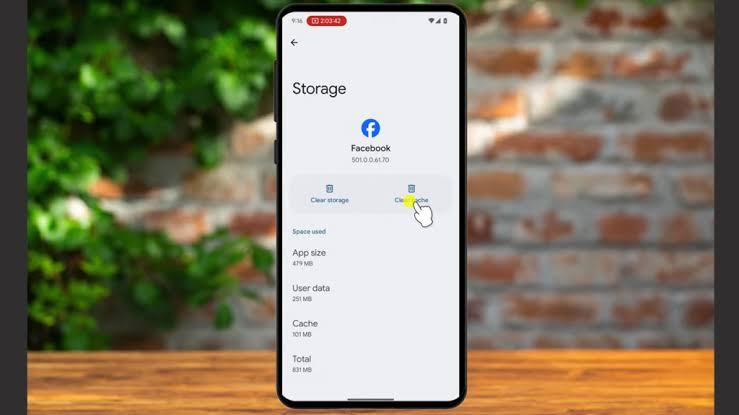
Step 5: Tap Clear Cache
You should see options relating to the application's storage.
Choose:
Clear cache
Be careful not to select Clear storage unless you understand what that option will do.
Once you clear the cache, the temporary cached files are removed.
---
Should You Clear the Cache of Every App?
No.
There's usually no reason to constantly clear the cache of every application on your phone.
Android is designed to manage storage and temporary data automatically.
Clearing cache can be useful when you're troubleshooting a specific problem or when an application has accumulated a large amount of temporary data.
If an app is working perfectly, there's generally little reason to keep clearing its cache simply because someone told you that it will “make your phone faster.”
When Clearing Cache Can Actually Help
Clearing an application's cache can sometimes be useful when:
An app keeps crashing
Images aren't loading correctly
An app is behaving strangely
An application appears to be using excessive temporary storage
An update seems to have caused a temporary problem
It's not a guaranteed solution, but it's a relatively simple troubleshooting step.
---
What Happens After You Clear the Cache?
You might notice that the application takes slightly longer to load something the first time afterward.
That's not necessarily a problem.
The application may simply be rebuilding some of the temporary files it needs.
For example, a website or image that was previously cached may need to be downloaded again.
After you continue using the application, its cache will naturally build up again.
That's normal.
---
What Is the Difference Between Clear Cache and Clear Storage?
This distinction is important.
Clear Cache
Removes temporary cached files.
It generally doesn't sign you out or erase the application's main user data.
Clear Storage / Clear Data
Removes the application's locally stored data and resets it closer to its initial state.
Depending on the application, this can mean:
You may be signed out
App settings may be reset
Locally stored information may be removed
Offline content may disappear
The exact result depends on the application.
So if someone tells you to “clear the app,” make sure you know which option they mean.
---
What About Chrome and Other Browsers?
Web browsers can accumulate cached files over time.
If a website isn't displaying correctly, clearing browser data can sometimes help.
But browser settings usually provide several different options, such as cached images, cookies, browsing history, saved passwords, and site data.
Don't select everything without checking.
For example, deleting cookies or site data can sign you out of websites.
If you're simply trying to troubleshoot a page, start by understanding exactly which data you're removing.
---
Does Clearing Cache Make Your Phone Permanently Faster?
Not usually.
You'll sometimes see claims online suggesting that clearing cache regularly will dramatically speed up any Android phone.
That's an exaggeration.
Cache exists for a reason.
It can actually help applications load certain information more efficiently.
If your phone is genuinely slow, investigate the underlying problem instead.
Check:
Available storage
Recently installed applications
Battery usage
Background activity
Software updates
Device age and hardware limitations
Clearing a cache can fix a particular application problem, but it's not a magic performance button.
---
Don't Install Random “Cache Cleaner” Apps
If you've searched for ways to clean your Android phone, you've probably seen applications promising to remove junk and make your phone dramatically faster.
Be careful.
You don't necessarily need another application running on your phone just to remove temporary files.
Android already provides built-in storage and app-management tools.
Before installing a third-party cleaner, ask yourself whether you actually need it.
Sometimes the simplest solution is already inside your phone's Settings.
---
What If an App Is Still Misbehaving?
If clearing the cache doesn't solve the problem, try checking whether the application has an available update.
You can also restart your phone.
If the problem started immediately after a recent update, look for reports from other users or information from the application's developer.
As a last resort, you may consider uninstalling and reinstalling the application.
But remember that doing so can remove locally stored information, so make sure anything important is synchronized or backed up first.
---
A Simple Rule to Remember
If you're troubleshooting an Android application, think of the options this way:
Clear cache → temporary files
Clear storage/data → reset the app's stored data
That simple distinction can prevent an accidental loss of application data.
---
Final Thoughts
Clearing cache isn't something you need to do every day.
It's better viewed as a troubleshooting tool than a routine maintenance ritual.
If one application is acting strangely, taking up an unusual amount of temporary storage, or refusing to load information properly, clearing its cache can be worth trying.
Just make sure you choose Clear cache, not Clear storage/data, unless you deliberately want to reset the application.
And if your entire phone is slow, don't automatically blame the cache.
There may be a much bigger issue behind the slowdown.
Understand the problem first, then choose the fix.
This article is part of Alvonbot.com's Tech Guides series.

Leave a comment
Your email address will not be published. Required fields are marked *