There is a particularly annoying moment that many smartphone users know too well.
You try to take a picture, download an app, or receive a large file, and your phone suddenly displays a message:
“Storage space running low.”
You delete a few pictures, perhaps remove an old app, and everything seems fine for a while.
Then, a few weeks later, the same warning appears again.
If this sounds familiar, the problem may not be that you simply have “too many pictures.” Modern phones collect data from many different places, and some of it can be surprisingly large.
Here's how to find out what's actually using your storage.
1. Find Out What's Taking Up the Space
Before deleting anything, check your storage breakdown.
On most Android phones, you can find this somewhere under:
Settings → Storage
The exact wording can differ between manufacturers.
You'll usually see categories such as:
Apps
Images
Videos
Audio
Documents
System
Other
This is the first place I'd look.
There's little point spending half an hour deleting photographs if applications are actually consuming most of your storage.
2. Check Your Videos
Photos are usually blamed for storage problems, but videos can be much worse.
A few high-resolution videos can take up more space than hundreds of ordinary photographs.
Open your gallery and look through your videos.
You may find old recordings you completely forgot about.
Perhaps you downloaded a video months ago and never watched it again.
Or maybe someone sent you a large video through a messaging app.
If you don't need it, deleting it can immediately free up a significant amount of space.
Just make sure important videos are backed up before you remove them.
3. Look at Your Download Folder
The Downloads folder is another place where forgotten files tend to accumulate.
You might download:
PDFs
Images
Videos
Documents
Installation files
ZIP files
Receipts
Then you completely forget about them.
Open your phone's file manager and check the Downloads folder.
If you find files you no longer need, remove them.
You might be surprised by how much space you've recovered.
4. Uninstall Apps You Don't Use
Take a look at your installed applications.
You may find games you haven't opened in six months.
There may be shopping apps you used once.
Perhaps you downloaded an application to solve one particular problem and haven't touched it since.
If you don't need an app anymore, uninstalling it can free up storage.
There's no prize for having 150 applications installed.
Keep the ones you actually use.
5. Check Messaging Apps
Messaging applications can quietly consume a lot of storage.
Think about all the images, videos, voice messages, documents and GIFs you receive.
If you're in several active group chats, that amount can become surprisingly large.
Check the storage-management section of your messaging application to see what is taking up space.
Some apps allow you to identify large files and remove them without deleting your entire conversation history.
That's much better than randomly deleting everything.
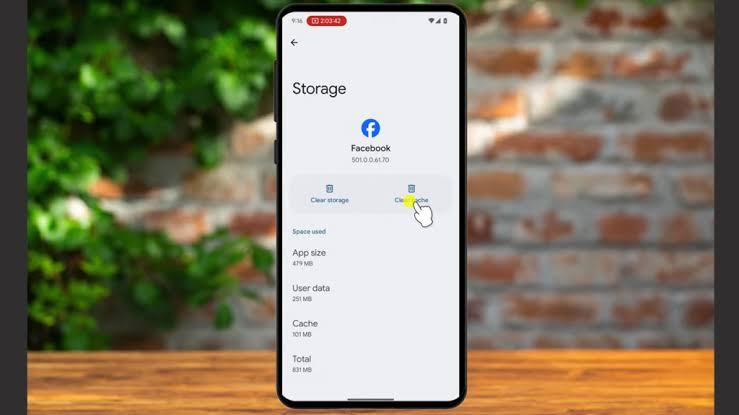
6. Be Careful With “Clear Data”
When you're trying to free up space, you may see two options:
Clear cache
and
Clear storage/data
They aren't the same.
Clearing cache removes temporary files.
Clearing an application's storage or data can reset the application and may remove locally stored information or sign you out.
So don't tap Clear data simply because you want to free a few megabytes.
Read what the option does first.
7. Use Cloud Storage Carefully
Cloud storage can be useful for photographs and documents.
Services such as Google Photos and other cloud-storage platforms can allow you to keep copies of files online rather than storing everything exclusively on your phone.
But remember something important:
Uploading a file doesn't necessarily mean it's safe to delete the original immediately.
Make sure the upload has completed and that you can actually access the backed-up file before deleting anything from your device.
For important photographs and documents, having more than one backup is even better.
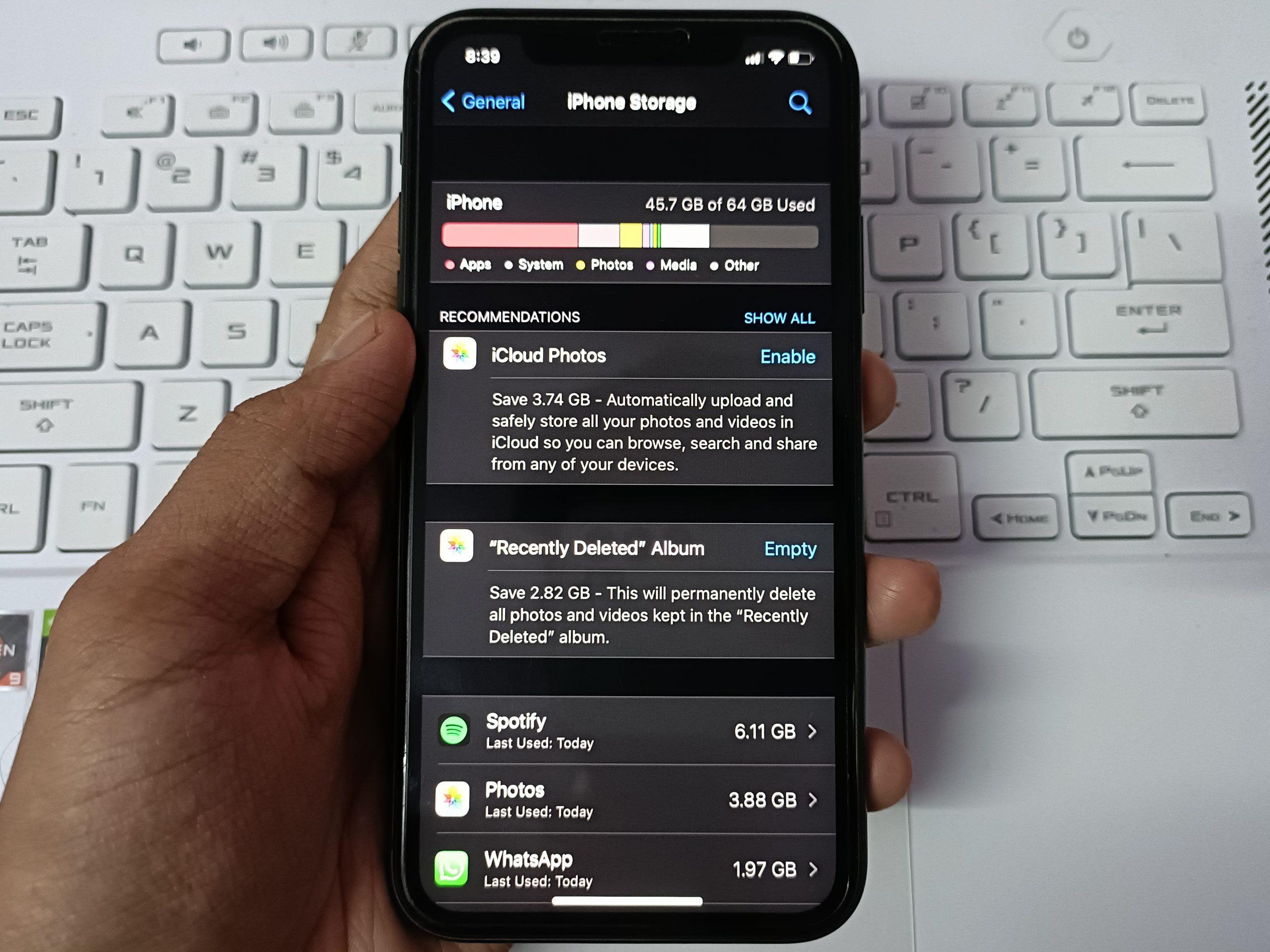
8. Don't Forget the “Recently Deleted” Folder
Here's something people often overlook.
You delete hundreds of photographs and wonder why your storage hasn't changed much.
The reason may be that they're still sitting inside a Recently Deleted, Trash, or similar folder.
Many gallery and cloud-storage applications keep deleted files for a period of time before permanently removing them.
If you're certain you don't need those files anymore, check the relevant trash folder.
But be careful.
Once you permanently delete them, recovering them may be difficult or impossible.
What Is “Other” Storage?
Sometimes you'll look at your storage breakdown and see a category called Other.
This can be confusing.
“Other” may include various types of files and application data that don't fit neatly into the main categories.
The exact meaning depends on your phone's software.
Don't assume that everything listed under “Other” is useless junk.
Some of it may be required by applications or the operating system.
That's another reason to avoid using aggressive cleaning tools that promise to delete everything they consider unnecessary.
Should You Use a Phone Cleaner?
You may see apps promising to make your phone “10 times faster” by cleaning junk files.
I'd be cautious.
Your phone already has tools for managing storage, and aggressively deleting files without understanding what they are can create new problems.
Start with the built-in storage settings.
Look at what's actually consuming space.
Then delete things you recognize and no longer need.
That's safer than allowing an unfamiliar application to make decisions about your files.
What If Your Phone Is Still Full?
If you've cleaned your photos, videos, downloads and unused apps but still don't have enough space, it may simply be time for a storage upgrade.
If your phone supports a memory card, you may be able to expand its storage.
However, not every phone supports expandable storage.
If your phone doesn't, you may need to move some files to a computer, external storage or a suitable cloud service.
And when buying your next phone, consider choosing more internal storage if you regularly keep large amounts of media.
Don't Wait Until You Have Zero Space
One habit can save you from this problem in the future.
Don't wait until your phone is completely full before managing your files.
Every few weeks, spend a few minutes checking:
Photos → Videos → Downloads → Apps → Messaging files
Delete what you don't need and back up what you want to keep.
It's much easier to maintain your storage than to deal with thousands of files after your phone has run out of space.
Final Thoughts
A full phone doesn't always mean you need a new phone.
Sometimes, it's simply a matter of finding out where your storage is going.
Large videos, old downloads, unused applications and messaging-media files are common culprits.
Start by checking your storage breakdown rather than deleting things randomly.
And most importantly, don't delete important files until you're sure you have another copy.
A little digital housekeeping every now and then can keep your phone running more comfortably—and save you from that frustrating “storage almost full” notification.
This article is part of Alvonbot.com's Technology & Digital Skills series.

Leave a comment
Your email address will not be published. Required fields are marked *