How to Take a Screenshot on an Android Phone: Easy Methods That Work
There are moments when you need to save something that's currently on your phone screen.
Maybe you just received an important message. Perhaps you saw an order confirmation, found a useful piece of information online, or want to show someone exactly what you're seeing on your screen.
Instead of taking a picture of the phone with another device, you can simply take a screenshot.
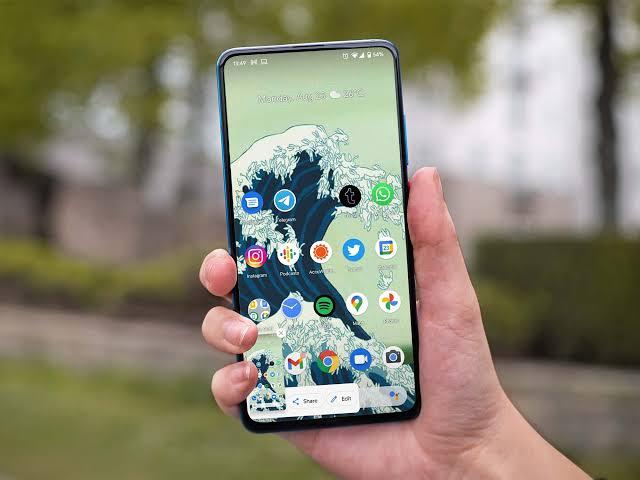
A screenshot captures what is currently displayed on your screen and saves it as an image.
The exact method depends on the Android phone you're using, but most Android devices support a few simple options.
Method 1: Press the Power and Volume Down Buttons
This is probably the most common method.
Step 1
Open the screen you want to capture.
For example, open the message, webpage, photo, or application you want to save.
Step 2
Press the Power button and Volume Down button at the same time.
You don't usually need to hold them for several seconds.
A quick press should be enough.
If it works, you'll normally see a brief animation or hear a camera-like sound.
Your screenshot has now been saved.
Step 3
Open your Gallery or Photos application.
Look for a folder called Screenshots.
Your captured image should be there.
---
Why Does My Phone Keep Turning Off Instead?
This is a common problem for people who are trying the button combination for the first time.
If you hold the Power button for too long, the phone may open the power menu.
If you press the volume button first and then press the Power button much later, the screenshot may not happen either.
Try pressing both buttons at approximately the same time and releasing them quickly.
If that still doesn't work, your phone may use a different screenshot method.
Method 2: Use the Quick Settings Panel
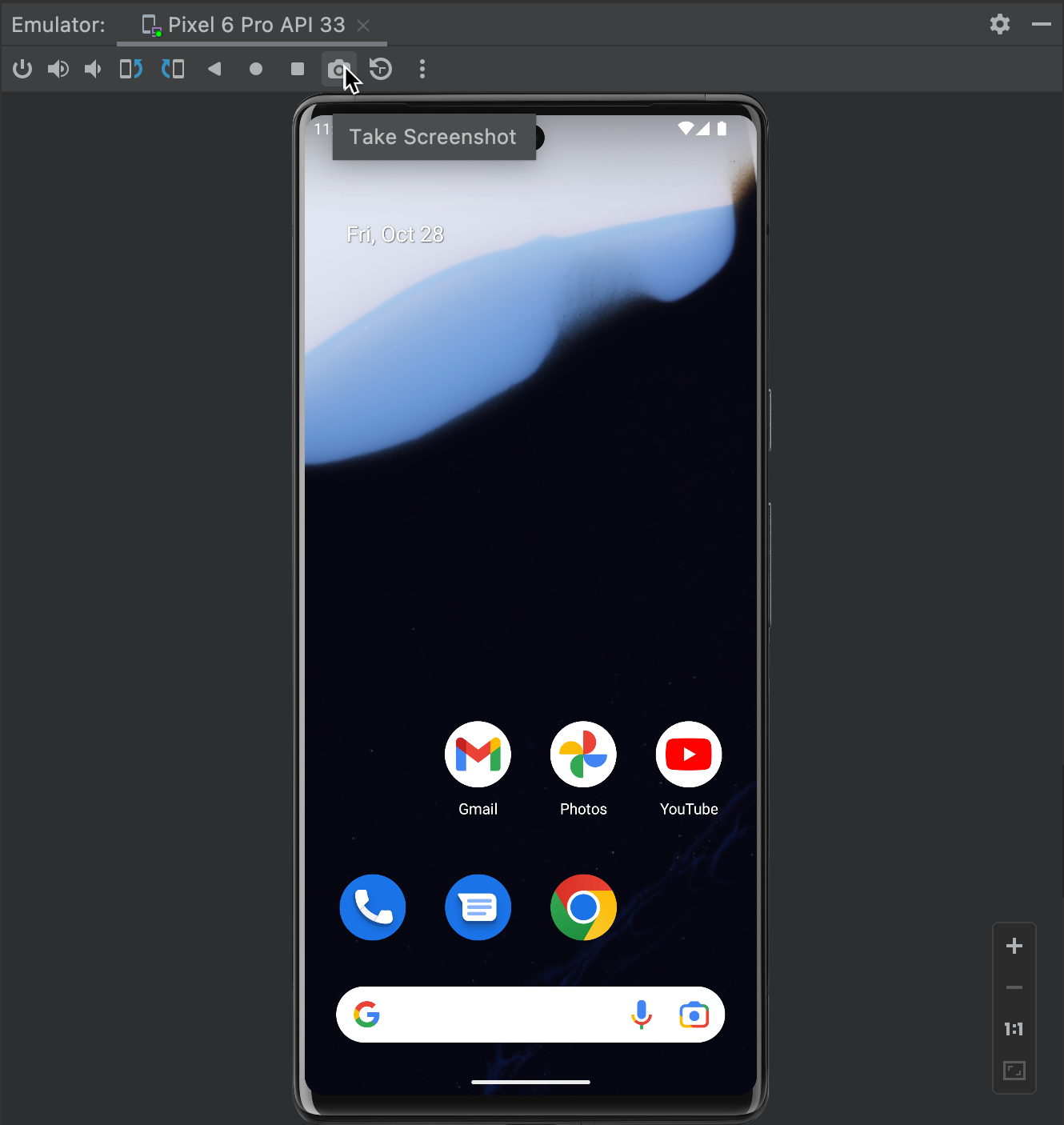
Some Android phones provide a screenshot button in the Quick Settings area.
Swipe down from the top of your screen.
You may see an option labelled:
Screenshot
or something similar.
Tap it and the phone should capture the current screen.
If you don't see the option immediately, look through the available Quick Settings buttons or tap the edit option to see whether Screenshot can be added.
The exact interface varies between Android manufacturers.
---
Method 3: Use a Gesture
Some Android phones support screenshot gestures.
For example, certain devices allow you to capture the screen by using a specific hand gesture or swiping gesture.
However, this isn't available on every Android phone, and the gesture differs between manufacturers.
If you're interested in using gestures, open your phone's Settings and search for:
Screenshot
or
Gestures
You may find additional screenshot options there.
---
How to Take a Screenshot of a Long Page
Here's a useful feature many people don't know about.
Suppose you're reading a long webpage or viewing a long conversation.
You don't necessarily have to take ten separate screenshots.
Some Android phones allow you to capture a scrolling screenshot.
First, take a normal screenshot.
Afterward, look for an option such as:
Capture more
Scroll
or
Long screenshot
Tap it and the phone may allow you to extend the screenshot further down the page.
This feature isn't supported in every application, though.
Some apps prevent scrolling screenshots because of privacy, security, or technical restrictions.
---
Where Are My Screenshots Saved?
Screenshots are normally saved automatically.
Depending on your phone, you may find them in:
Gallery → Screenshots
or:
Google Photos → Library → Screenshots
You can also use your phone's file manager to search for screenshots.
The exact folder can vary between Android devices and software versions.
---
How to Share a Screenshot
Once you've taken your screenshot, sharing it is usually straightforward.
Open the screenshot from your Gallery or Photos application.
Tap the Share button.
You can then choose an available application, such as a messaging app, email, or another service.
This is useful when you're trying to show someone a problem you're experiencing.
For example, instead of telling technical support:
> “Something strange is happening on my phone.”
You can send them a screenshot showing exactly what you're seeing.
---
How to Edit a Screenshot Before Sending It
You don't always want to send the entire screenshot.
Maybe there's a phone number, email address, private conversation, or other information that the recipient doesn't need to see.
Most modern phones provide basic editing tools after taking a screenshot.
You may be able to:
Crop the image
Draw on it
Add text
Highlight something
Blur or cover information
Take a moment to check the image before sending it.
This is especially important when sharing screenshots publicly.
---
Be Careful With Personal Information
Screenshots can contain more information than you realize.
Before posting one on social media or sending it to someone you don't completely trust, check for things such as:
Phone numbers
Email addresses
Home addresses
Bank information
Transaction details
Passwords
Verification codes
Private conversations
Personal identification information
If something is private, crop it out or cover it before sharing.
A screenshot may look harmless, but once it's posted publicly, you may lose control over where it goes.
---
What If the Screenshot Isn't Working?
If you've tried the usual button combination and nothing happens, don't assume your phone is faulty.
Try these steps:
1. Restart the phone
A temporary software problem may be interfering with the screenshot function.
2. Try the Quick Settings option
If your phone provides a Screenshot button, use that instead of the physical buttons.
3. Check your buttons
If the Power or Volume Down button isn't working properly, the physical-button method obviously won't work.
4. Check your storage
If your phone has extremely limited free storage, it may have difficulty saving new files.
5. Search Settings
Type Screenshot into your phone's Settings search box.
You may discover another screenshot method specific to your device.
---
Can You Screenshot Everything?
Not necessarily.
Some applications deliberately prevent screenshots.
Banking applications and certain streaming or security-sensitive applications may restrict screenshots or show a blank/black image when you try to capture certain content.
This is usually a security or copyright-related design decision rather than a problem with your phone.
Don't try to bypass security restrictions simply because the screenshot button isn't working.
---
Final Thoughts
Taking a screenshot is one of those small smartphone features that becomes incredibly useful once you get used to it.
For most Android phones, pressing Power + Volume Down is the quickest method.
If that doesn't work, check your Quick Settings, look for screenshot gestures in Settings, or see whether your phone supports scrolling screenshots.
And before sharing a screenshot, take a second look at it.
You might be surprised by how much personal information is visible in the background.
This article is part of Alvonbot.com's Tech Guides series.

Leave a comment
Your email address will not be published. Required fields are marked *