Running out of storage can be frustrating, especially when your phone is filled with photos you don't want to lose.
You may have tried deleting apps, clearing a few files, or removing old downloads, only to discover that your phone is still almost full.
The good news is that you don't have to delete your important photos just to create more storage space.
There are several safer ways to recover space, including removing unnecessary downloads, managing messaging-app media, deleting duplicate files, cleaning up unused apps, and moving your photos to another storage location.
In this guide, we'll walk through practical methods you can use to free up storage while keeping the photos that matter to you.
---

First: Don't Delete Your Photos Yet
Before you start cleaning your phone, take a moment to find out what is actually using the storage.
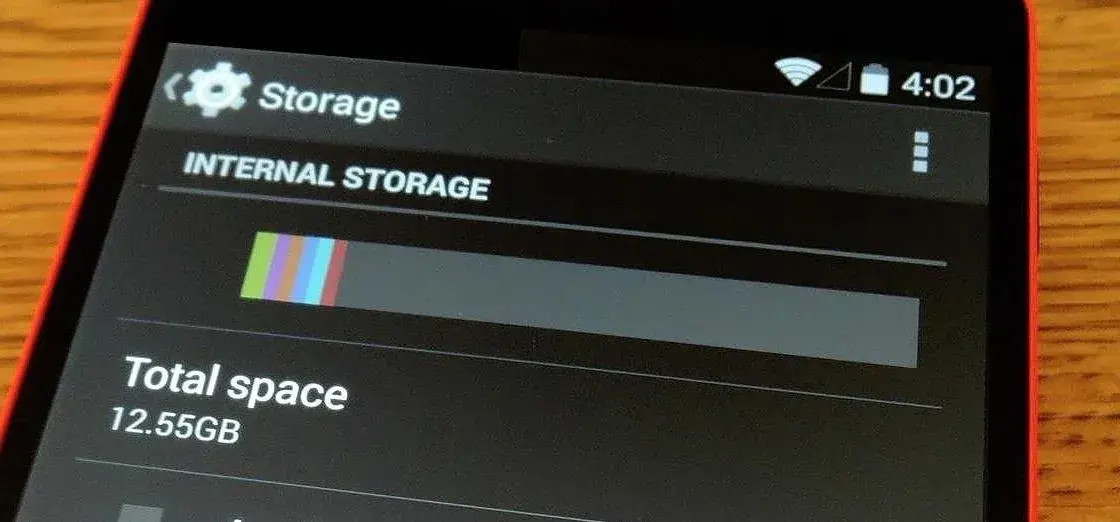
On many Android phones, you can check:
Settings → Storage
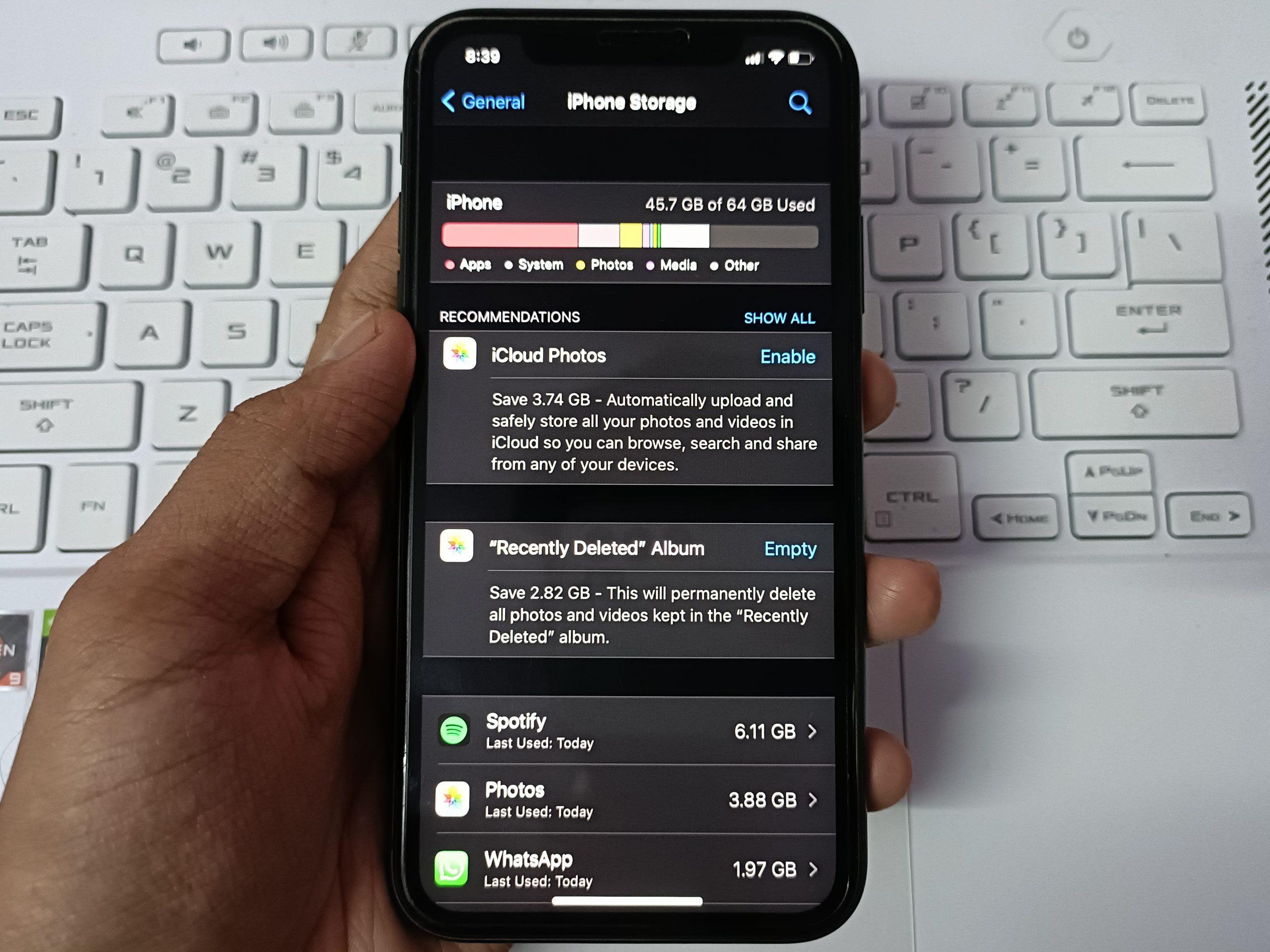
On an iPhone:
Settings → General → iPhone Storage
Your phone should give you an overview of how storage is being used.
You may discover that photos aren't actually the biggest problem.
For example, your storage might look something like this:
Apps — 42 GB
Videos — 28 GB
Photos — 15 GB
Downloads — 8 GB
Documents — 5 GB
Other data — 12 GB
In this situation, immediately deleting hundreds of photos wouldn't necessarily be the best solution.
Always identify the biggest storage users first.
---
1. Back Up Your Important Photos
If your photos are important, the first step should be creating another copy before you start cleaning your phone.
You could back them up to:
A trusted cloud-storage service
A computer
An external storage device
Another secure device
The important principle is:
> Don't remove the only copy of something you can't replace.
Check your backup
Simply uploading photos isn't enough if you aren't sure the backup completed successfully.
Open the backup service and check that your important photos are actually accessible.
For particularly important pictures, consider keeping two copies in different locations.
For example:
Phone → Cloud backup → Computer
This gives you more protection if one copy is accidentally deleted or becomes inaccessible.
---
2. Delete Screenshots You No Longer Need
Screenshots are easy to forget.
Over time, your phone can accumulate hundreds of them:
Payment confirmations
Conversations
Directions
Product information
Social-media posts
Temporary notes
Error messages
Articles
Memes
Some screenshots are important, but many were only needed for a few minutes.
Open your gallery and look for the Screenshots folder.
Go through them and remove anything you no longer need.
A simple question helps:
“Would I need this screenshot again?”
If the answer is no, delete it.
This can recover space without touching your personal photographs.
---
3. Remove Screen Recordings You Have Finished Using
Screen recordings can be surprisingly large.
A short screen recording can take considerably more storage than a normal screenshot because it contains many frames of video.
Look for folders such as:
Screen recordings
or
Screen Recorder
You might find old recordings that you created to:
Show someone how to use an app
Record a technical problem
Save a temporary video
Demonstrate something
Capture a conversation or process
If you no longer need them, remove them.
If one is important, back it up first.
---
4. Clean Up Your Downloads Folder
Your Downloads folder may contain files that you completely forgot about.
Open your phone's file manager and check:
Downloads
Look for:
Old PDFs
Installation files
ZIP files
Videos
Images
Documents
Duplicate files
Files downloaded for one-time use
Sort by file size if your file manager allows it.
This is useful because large files are usually the quickest way to recover meaningful storage.
Before deleting
Open unfamiliar files first.
Don't delete a file simply because you don't recognize the name.
---
5. Check WhatsApp and Other Messaging Media
Messaging applications can quietly fill up your storage.
Think about how many videos and pictures you've received over the past year.
Now multiply that by several group chats.
You may discover that your messaging applications contain:
Hundreds of videos
Duplicate photos
Forwarded images
GIFs
Voice recordings
Documents
Old memes
Go into the storage-management section of the messaging app you use.
Look for large files and files you no longer need.
Be careful with group chats
You don't have to delete an entire conversation.
Instead, identify the media taking up the most space and remove unnecessary files individually where possible.
This allows you to keep important conversations while reducing unnecessary storage usage.
---
6. Find Duplicate Photos
Sometimes the same photo exists several times on your phone.
For example, you might have:
The original photograph
A copy downloaded from WhatsApp
An edited version
A screenshot of the photograph
A compressed copy
You don't need five copies of the same picture.
Some modern phones and photo-management applications can help identify duplicate or similar images.
However, review the suggested duplicates before deleting them.
Two photos can look similar but still be different pictures.
---
7. Remove Unnecessary Videos Before Deleting Photos
If your phone's storage is dominated by media, look at your videos first.
Videos usually deserve special attention because they can consume a large amount of storage.
You might have:
Old screen recordings
Downloaded movies
Social-media videos
Duplicate clips
Failed recordings
Videos sent through messaging apps
Large videos you have already backed up
Instead of deleting 500 photographs, you might recover the same amount of storage by removing a handful of unnecessary large videos.
---
8. Remove Offline Downloads
Many apps allow you to save content for offline use.
This is useful when you don't have an internet connection, but offline content can eventually consume a lot of space.
Check applications that allow offline downloads.
You may have saved:
Videos
Music
Podcasts
Maps
Documents
Courses
If you have already finished using the content, remove the offline copy.
This doesn't necessarily mean deleting your account or cancelling your subscription.
You're simply removing the locally stored content from your device.
---
9. Uninstall Apps You Don't Use
Your photos aren't always the real problem.
Some applications can take up a significant amount of storage, especially when they accumulate downloaded content and other data.
Look through your apps and ask:
> Have I used this app recently?
If you haven't used an app for months and don't need it, consider uninstalling it.
Before removing an app, make sure any important information inside it is synchronized or backed up.
Don't install another cleaner just to clean your phone
You don't necessarily need a third-party “phone cleaner” application.
Start with the storage-management tools already available on your phone.
---
10. Clear Temporary App Cache Where Appropriate
Some Android applications accumulate temporary cached files.
If a particular app is consuming a surprising amount of space, check its storage information.
Depending on your device, you may see options such as:
Clear cache
Clear storage
Clear data
These options are not interchangeable.
Clearing cache is intended for temporary data, while clearing an app's storage/data can have much more significant consequences.
If you aren't sure what an option will remove, don't press it blindly.
Read the warning displayed by your phone first.
---
11. Move Large Files Off Your Phone
You don't necessarily have to delete a file permanently.
You can move files you want to keep somewhere else.
For example:
Phone → Computer
or
Phone → External storage
After transferring the files, open them from the new location and make sure they work correctly.
Only then should you consider deleting the original copy from your phone.
This is particularly useful for:
Family videos
Old projects
Work documents
Large recordings
Archived photographs
---
12. Use Your Phone's Storage Recommendations
Modern phones often provide recommendations for recovering storage.
Depending on your device, these recommendations might identify:
Unused applications
Large files
Duplicate files
Temporary files
Old downloads
Don't accept every recommendation automatically.
Review what the phone wants to remove first.
A storage tool can identify files, but you should still make the final decision about what is important.
---
13. Don't Empty Your Trash Without Checking It
Here's something many people forget.
When you delete a photo or file, it may not immediately disappear permanently.
Some gallery, photo, and file-management applications keep deleted items in a Trash, Recently Deleted, or Recycle Bin folder for a period of time.
That can be useful if you accidentally delete something.
But it also means deleted files can continue occupying storage.
After you've confirmed that you don't need the deleted items, you can review the trash and permanently remove them.
Be careful
Once you permanently empty the trash, recovering those files may be difficult or impossible.
So don't rush this step.
---
14. Organize Your Photos Instead of Deleting Them
If you have thousands of photographs, organization can make storage management much easier.
Create albums for things such as:
Family
Work
Travel
Events
Documents
Important memories
You can then identify photographs you don't need much more easily.
You might also find multiple versions of the same picture.
For example:
IMG_1234.jpg
IMG_1234_EDITED.jpg
IMG_1234_COPY.jpg
Keeping the best version and removing unnecessary copies can save space without sacrificing important memories.
---
15. Avoid Filling Your Phone to 100%
Once you've freed up storage, try not to immediately fill it again.
A completely full phone can become inconvenient because you'll have little room for:
New photographs
Videos
App updates
Downloads
Temporary files
System operations
Instead, make storage management a regular habit.
For example, once a month you could spend five minutes checking:
Settings → Storage
Then deal with the biggest unnecessary files.
---
A Simple 15-Minute Storage Cleanup
If you don't have much time, try this quick routine.
Minute 1–3
Check your storage breakdown.
Find the largest category.
Minute 4–6
Review large videos and screen recordings.
Minute 7–9
Check your Downloads folder.
Minute 10–12
Review WhatsApp or other messaging-app media.
Minute 13–15
Look for unused apps and unnecessary offline downloads.
You may be surprised by how much space you can recover without touching your important photographs.

---
What You Should NOT Delete Just Because Your Storage Is Full
Be careful with:
❌ Important family photographs
❌ Important videos
❌ Work documents
❌ School documents
❌ Identification documents
❌ Important conversations
❌ Files you haven't backed up
❌ Unknown system files
❌ App data you don't understand
Instead, identify → back up → verify → remove unnecessary copies.
---
Frequently Asked Questions
Can I free up storage without deleting my photos?
Yes. Start by checking apps, videos, downloads, messaging-app media, screen recordings, offline downloads, duplicate files, and other large files.
Why does my phone still have low storage after deleting photos?
Deleted photos may still be in a trash or recently deleted folder. Also, photos may not be the largest storage category. Check your phone's storage breakdown to find the actual cause.
Is cloud storage better than keeping everything on my phone?
Cloud storage can be useful for keeping a backup and reducing the amount of storage used locally. However, you should understand how the service works and make sure important files are properly backed up before deleting local copies.
Should I delete WhatsApp photos?
Not necessarily. Review the media first. Delete unnecessary duplicates, forwarded files, and large media you no longer need while keeping anything important.
How often should I clean my phone storage?
There is no fixed schedule that works for everyone. Checking your storage once a month is a simple habit that can prevent the problem from becoming serious.
---
Final Thoughts
Running out of phone storage doesn't mean you have to sacrifice your memories.
Before deleting important photographs, find out what is actually consuming your storage. Large videos, screen recordings, messaging-app media, downloads, unused apps and offline content can often provide better opportunities to recover space.
And when you do need to remove important files, don't rely on a single copy.
Back them up, verify the backup, and then remove unnecessary local copies.
A few minutes of regular storage management can save you from the stressful situation of seeing “Storage Full” when you need your phone the most.

Leave a comment
Your email address will not be published. Required fields are marked *