Have you ever tried to download an app, record a video, or take a picture only to see a message saying “Storage almost full”?
It can be frustrating, especially when you feel like you have already deleted photos, videos, and apps.
The problem is that your phone's storage is used by more than just the files you can easily see. Apps, downloaded media, temporary files, documents, offline content, and other data can gradually consume your available space.
The good news is that you don't necessarily need to delete everything from your phone or buy a new device.
In this guide, we'll show you 10 practical ways to find what's taking up your storage and safely free up space.

> Important: Before deleting anything, check what is actually consuming your storage. Randomly deleting files can remove something you still need.
---
1. First, Find Out What Is Using Your Storage
Before deleting anything, find out where the problem is.
On most Android phones, open:
Settings → Storage
The exact wording and location can vary depending on the phone manufacturer and Android version. Android's storage screen can show categories of content using space.
You may see categories such as:
Apps
Photos and videos
Audio
Documents
Downloads
System
Other files
Why this matters
Suppose your phone has 128 GB of storage and you have used 120 GB.
Deleting five small pictures isn't going to make much difference if a few large videos or apps are responsible for most of that 120 GB.
Start with the category consuming the most space.
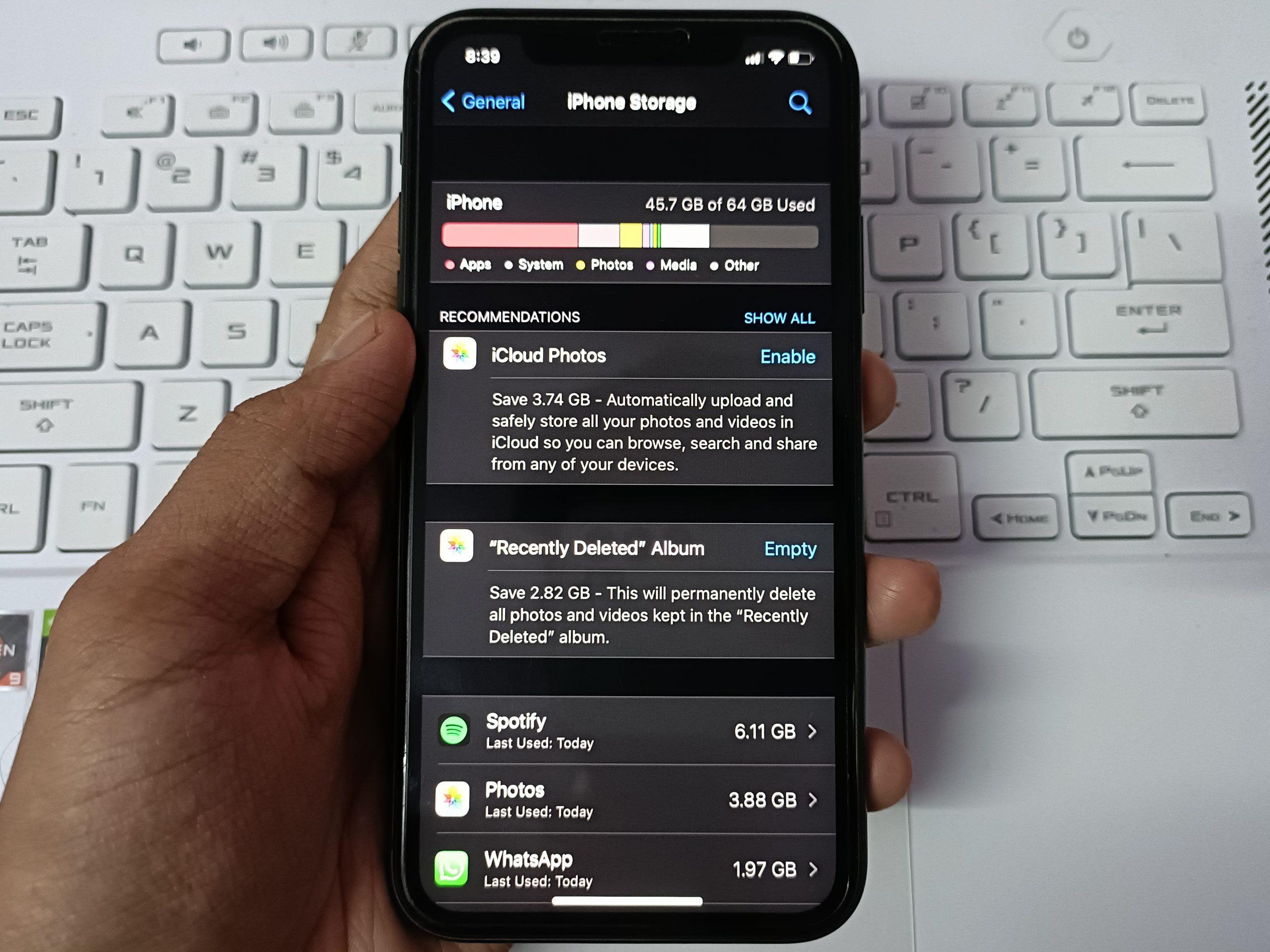
For iPhone users, go to:
Settings → General → iPhone Storage
The iPhone Storage screen shows how much space apps and other content are using and may provide recommendations for freeing up storage.
---
2. Delete Large Videos You No Longer Need
Videos are often among the easiest places to recover significant storage.
A few high-resolution videos can take up considerably more space than hundreds of ordinary documents.
Check your:
Camera folder
Screen recordings
Downloaded videos
Social media folders
Messaging-app media
Old videos you have already backed up
Don't just delete everything.
Instead, ask:
“Do I still need this video on my phone?”
If you want to keep an important video, move or back it up first and then remove the local copy.
This approach is better than deleting personal memories simply because your phone is running out of space.
---
3. Check WhatsApp and Other Messaging Apps
Messaging applications can quietly become major storage users.
Think about all the:
Videos
Photos
Voice recordings
Documents
GIFs
Stickers
Forwarded files
that you receive over months or years.
Some of these files may be stored on your phone even though you don't remember downloading them.
What to do
Open your messaging app's storage-management section and look for:
Large files
Frequently forwarded files
Old videos
Duplicate media
Conversations containing lots of media
Before deleting anything, open the files and make sure they aren't important.
This is particularly useful if you belong to several busy group chats.
---
4. Remove Apps You Don't Use
Look through your installed apps.
You may find applications you:
Downloaded for one particular task
Used once
Haven't opened for months
Installed for testing
Completely forgot about
If you don't need an app, uninstalling it can recover its storage.
On Android, Google also provides options for automatically or manually archiving certain unused apps. Archiving can remove the app's software while retaining its icon and data so that it can be restored later, where supported.
Don't delete apps blindly
Before uninstalling an app, consider whether you have:
Important information stored inside it
Unsaved files
Offline downloads
Account information that isn't synchronized
If you're unsure, check the app first.
---
5. Clear App Cache — But Be Careful
This is one of the most misunderstood storage tips.
Cache is temporary data that apps store to help them work more efficiently.
On Android, you can usually clear an app's cache from its settings, although the exact steps vary between phones.
Google explains that clearing an app's cache removes temporary data, while clearing an app's storage/data can permanently remove its app data.
That's an important difference.
If your phone gives you options such as:
Clear cache
Clear storage
Clear data
don't automatically choose the second or third option.
If you only want to remove temporary files, Clear cache is generally the option to investigate.
Example
Imagine a video-streaming app has accumulated a large cache.
Clearing the cache may free some space without deleting your account itself.
But clearing the app's storage/data can have much bigger consequences.
Always read the warning displayed by your phone before confirming.
---
6. Check Your Downloads Folder
Your Downloads folder can become a digital junk drawer.
You might have:
Old PDFs
Images
APK files
Documents
ZIP files
Videos
Installation files
Duplicate documents
that you no longer need.
Open your phone's file manager and look inside Downloads.
Sort the files by size if your file manager provides that option.
Then ask:
> Do I still need this file?
If the answer is no, delete it.
This is particularly useful when you frequently download files from browsers or messaging applications.
---
7. Look for Offline Downloads
Some apps allow you to download content for offline use.
For example, you might download:
Movies
Music
Podcasts
Maps
Documents
Courses
The content can remain on your phone even after you have forgotten about it.
Check the apps you regularly use and look for their Downloads, Offline, or Storage sections.
If you have already watched or listened to something, consider removing the offline copy.
You can always download it again later if the service allows it.
---
8. Back Up Important Photos and Videos Before Removing Them
If photos and videos are consuming most of your storage, don't immediately start deleting your memories.
First make sure important files are backed up somewhere you can access later.
For example, you might use a trusted cloud-storage service or transfer files to a computer or external storage device.
Android provides options for removing backed-up photos and videos from the device to recover local storage.
On iPhone, Apple provides Optimize iPhone Storage, which can keep full-resolution photos and videos in iCloud while using smaller versions on the device when appropriate.
A simple rule
Back up → Verify the backup → Delete the local copy.
Don't reverse those steps.
---
9. Check Which Apps Are Consuming the Most Space
Sometimes the problem isn't the number of apps you have.
It's how much data individual apps have accumulated.
Go to your phone's storage settings and examine the largest apps.
You may discover that one app is using several gigabytes because of:
Downloads
Cached files
Offline content
Photos/videos
Documents
Other stored data
Once you identify the biggest storage users, you can decide whether to:
1. Remove unnecessary downloads
2. Clear temporary cache
3. Delete content from inside the app
4. Uninstall the app
5. Reinstall it if appropriate
Don't assume that the app itself is responsible for all the storage shown. Some of the space may be its stored content or data.
---
10. Keep Some Free Space Available
Freeing storage shouldn't be something you do only when your phone displays an emergency warning.
Try to maintain a reasonable amount of free space so that your phone has room for:
New photos
App updates
Temporary files
System operations
Downloads
Google notes that Android devices can begin experiencing problems when less than 10% of storage is free.
That doesn't mean every phone will suddenly stop working at exactly 10%. Devices and software behave differently.
The practical lesson is simple:
Don't wait until your storage is completely full before managing it.
---
What If Your Phone Says Storage Is Full Even After You Delete Files?
This can happen.
If you've deleted files but the available space doesn't seem to change, try these steps:
1. Empty the trash/recycle bin
Some phones and apps don't immediately remove deleted files permanently.
Check your:
Gallery/Photos trash
File manager recycle bin
Cloud-storage trash
Messaging-app deleted items
2. Restart the phone
A restart can sometimes help the system refresh its storage information.
3. Check your largest apps again
An app may have accumulated additional data even after you've removed some files.
4. Check Downloads and messaging media
These are easy to overlook.
5. Look at the storage categories again
Return to Settings → Storage and see whether the category using the most space has changed.
---
Android vs iPhone: Which Storage Tools Should You Use?
Task Android iPhone
Check device storage Settings → Storage Settings → General → iPhone Storage
Review large apps Storage/App settings iPhone Storage
Remove unused apps Uninstall or archive where supported Offload or delete apps
Manage photos Backup/delete local copies iCloud Photos/Optimize Storage
Clear app cache Available on many Android phones iOS manages cached/temporary data differently
Review downloads File manager/Downloads Files app and individual apps
The exact menus can vary by device model and operating-system version, so don't worry if your screen looks slightly different.
---
5 Mistakes to Avoid When Freeing Phone Storage
Mistake 1: Deleting everything in your Downloads folder
Some downloaded documents may be important.
Review them first.
Mistake 2: Clearing app data instead of cache
These options are not the same. Google specifically distinguishes clearing temporary cache from clearing an app's stored data.
Mistake 3: Deleting photos before confirming your backup
A backup you haven't verified isn't something you should blindly depend on.
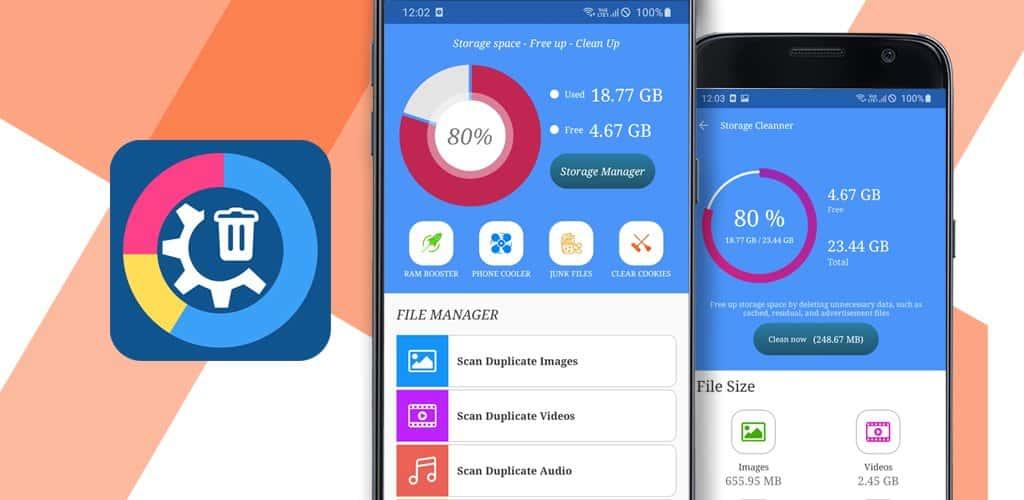
Mistake 4: Installing random “phone cleaner” apps
You don't necessarily need another app to manage your storage. Start with the storage tools already provided by your phone.
Mistake 5: Only deleting tiny files
If a 4 GB video is taking up more space than hundreds of small documents, deleting the small files first won't solve the main problem.
Find the biggest storage users first.
---
Frequently Asked Questions
Why is my phone storage full when I don't have many photos?
Photos are only one part of phone storage. Apps, videos, downloads, offline content, documents, cached files and other data can consume significant space.
Check your phone's storage breakdown to identify the largest category.
Does clearing cache delete my photos?
Clearing an app's cache generally removes temporary data belonging to that app. It is different from deleting your personal photos from your gallery. However, always read the confirmation screen before proceeding because clear cache and clear storage/data are different operations.
Should I delete unused apps?
If you genuinely don't need them, removing unused apps can recover storage. Android also supports app archiving on supported devices, which can free space while retaining the app's data and icon.
How much storage should my phone have free?
There isn't one universal percentage that applies to every phone. However, keeping some free space is important. Google notes that Android phones can start experiencing issues when less than 10% of storage is available.
Can deleting videos really make a big difference?
Yes. Large videos can consume considerably more storage than ordinary text documents or small images. If your storage is nearly full, reviewing large videos is often worthwhile.
---
Final Thoughts
A phone that constantly says “Storage Full” doesn't necessarily mean you need a new phone.
Start by finding out what is actually consuming your storage. Then work through the largest categories first.
Delete unnecessary videos, review messaging-app media, remove apps you no longer use, clean up downloads, manage offline content and safely back up important files before removing them.
Most importantly, don't delete files randomly. A few minutes spent identifying what's taking up space can help you recover much more storage while avoiding the loss of important information.
If you regularly check your storage instead of waiting until it reaches 100%, keeping your phone organized becomes much easier.

Leave a comment
Your email address will not be published. Required fields are marked *