A phone that was fast when you first bought it can gradually start feeling slower.
Apps may take longer to open, the keyboard might respond slowly, websites may load with delays, and switching between applications can become frustrating.
When this happens, many people immediately search for a “phone booster” or “RAM cleaner” app.
But installing another application isn't always the best solution.
In many cases, you can improve your phone's responsiveness by identifying what's causing the slowdown and making a few changes to the way the device is used.
This guide explains practical ways to make an Android phone faster without relying on questionable booster applications.
---
First, Understand Why Your Android Phone Is Slow
There isn't one universal reason why an Android phone becomes slow.
The cause could be:
Very little free storage
Too many demanding applications
Background activity
Outdated software
An outdated application
Excessive cached data
A weak or aging battery
Overheating
Hardware limitations
Too many processes happening at once
That's why simply installing a “RAM booster” may not solve the underlying problem.
The best approach is to diagnose the problem first.
---
1. Restart Your Phone
This sounds simple, but it's an easy first step.
If your phone has been running continuously for a long period, restarting it can give the operating system a fresh start.
A restart can be particularly useful if your phone has suddenly become sluggish or an application isn't behaving normally.
Try this first
1. Save anything you're working on.
2. Hold the power button.
3. Choose Restart if your phone provides that option.
4. Wait for the device to start completely.
5. Try the tasks that previously felt slow.
A restart isn't a permanent solution to every performance problem, but it's a useful troubleshooting step.
---
2. Check How Much Storage You Have Left
One of the first things you should investigate is storage.
Open:
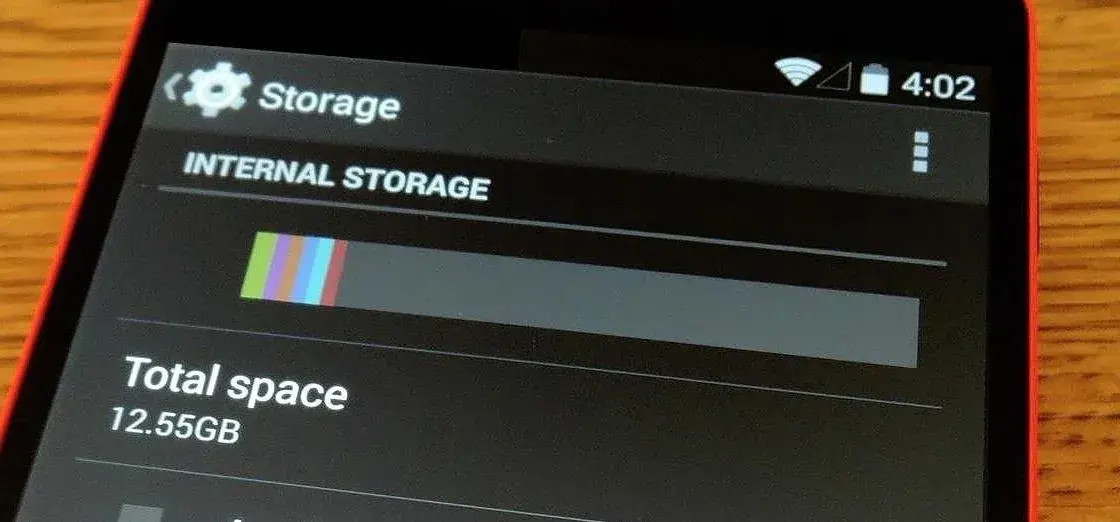
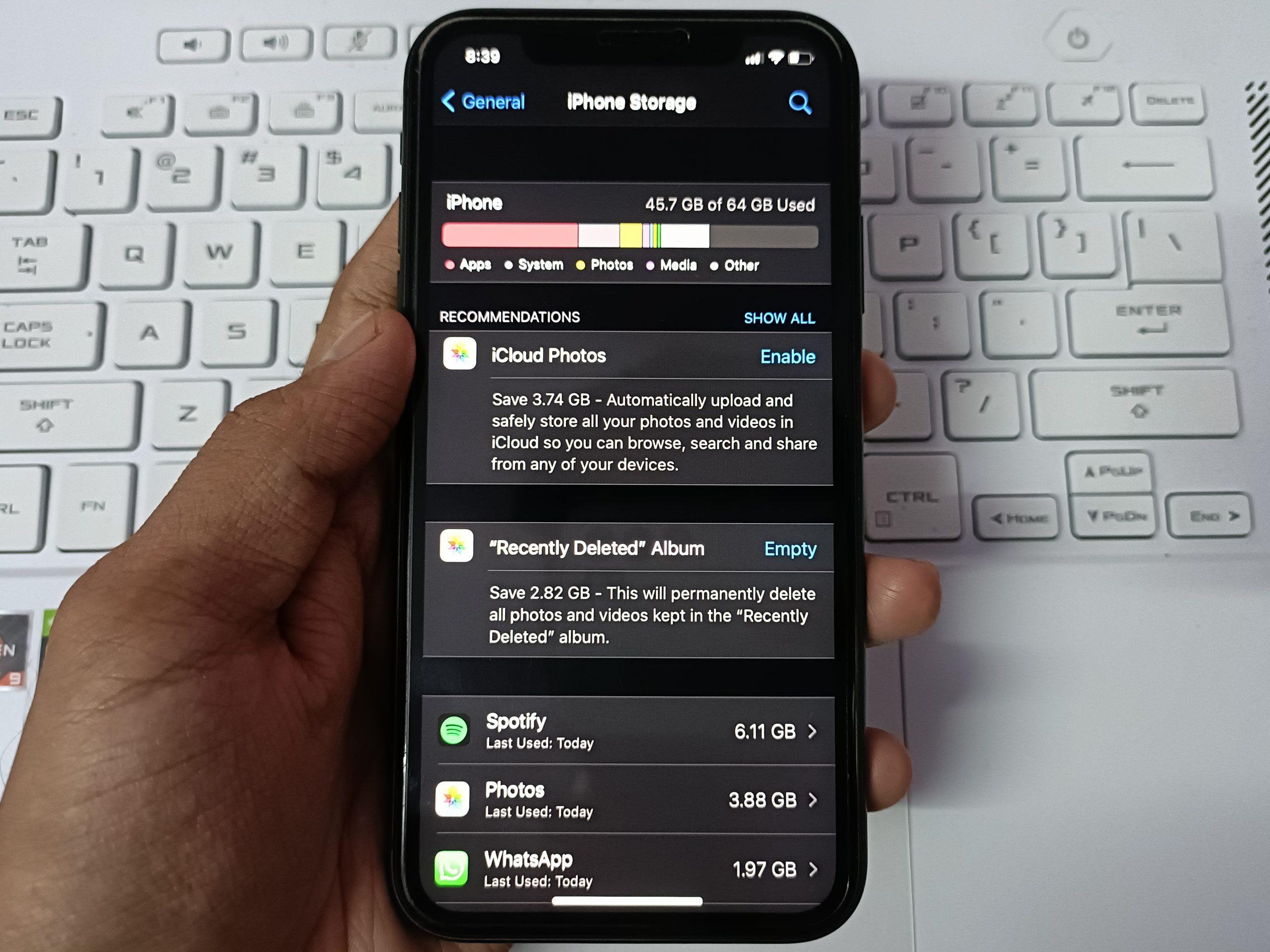
Settings → Storage
The exact location can vary depending on the Android phone you use.
If your storage is almost completely full, your phone may have less room to perform certain operations and manage temporary files.
Google recommends keeping some storage available and notes that Android devices can begin experiencing problems when less than 10% of storage is free.
What should you do?
Look for large files such as:
Old videos
Screen recordings
Downloads
Duplicate files
Unused applications
Offline media
Unnecessary documents
Don't start deleting random files.
Find the largest storage users first.
---
3. Uninstall Apps You Don't Use
Take a look at your app drawer.
You may discover applications that you haven't opened in months.
Some apps can occupy significant storage and may also perform background tasks.
Ask yourself:
> Have I used this application recently, and do I actually need it?
If the answer is no, consider uninstalling it.
Before uninstalling
Make sure you don't have important information stored only inside the app.
For example, check whether you need to save:
Documents
Downloaded files
Projects
Notes
Offline content
Once you're certain, remove the app.
Fewer unnecessary applications can also make it easier to manage your phone.
---
4. Update Your Apps
Sometimes a slow or unstable experience is caused by an application rather than the phone itself.
Developers regularly release updates that can include:
Bug fixes
Security improvements
Compatibility changes
Performance improvements
Open the Google Play Store and check for available updates.
You don't have to assume that every update will make your phone faster, but keeping commonly used applications reasonably up to date can help avoid problems caused by outdated software.
---
5. Keep Android Updated
Your phone manufacturer may provide system updates that include:
Security fixes
Bug fixes
Compatibility improvements
Stability improvements
New features
Check:
Settings → System → Software Update
The exact menu depends on your phone manufacturer.
If an update is available, read the information provided by the manufacturer before installing it.
One important point
Don't expect every Android update to make an older phone dramatically faster.
Major system updates can sometimes require more resources than older software.
The goal is to maintain a stable, supported and secure device, not simply to chase a higher performance number.
---
6. Check Which Apps Are Running Heavily in the Background
Some applications continue performing tasks when you're not actively using them.
For example, they might:
Synchronize information
Receive notifications
Upload files
Refresh content
Use your location
Process media
If one application is constantly consuming resources, it could contribute to poor performance.
Check your phone's:
Battery → Battery usage
or a similar section.
Look for applications that are using unusually large amounts of battery or background activity.
If an app you rarely use is constantly active, investigate its settings.
---
7. Clear an App's Cache When It Makes Sense
Cached data can help applications load certain information faster.
However, some apps can accumulate a significant amount of temporary data.
If one particular app is behaving strangely or taking up excessive storage, you may consider clearing its cache.
On many Android phones:
Settings → Apps → Select the app → Storage → Clear cache
The exact menu differs by device.
Be careful
You may see both:
Clear cache
and
Clear storage/data
These are not the same thing.
Clearing cache removes temporary data, while clearing app storage/data can remove information stored by the application and may require you to configure or sign in again.
If you're unsure, don't press Clear storage/data simply because you want to make the phone faster.
---
8. Reduce Unnecessary Widgets
Widgets can be useful because they display information directly on your home screen.
For example:
Weather
News
Calendar
Clock
Stocks
Social media
But if you have a large number of constantly updating widgets, they can add unnecessary activity.
Look at your home screen.
Ask:
> Which widgets do I actually use?
Remove the ones that aren't providing useful information.
You don't need to remove every widget.
The goal is simply to keep your home screen useful rather than overloaded.
---
9. Reduce Unnecessary Animations
Android uses animations when opening applications, switching screens and performing certain actions.
On some phones, reducing animation effects can make the interface feel faster because transitions happen more quickly.
This is especially noticeable on older devices.
Android's Developer options can provide settings related to animation scales, but these settings are intended for advanced users.
If you don't understand Developer options, don't randomly change settings.
If you know what you're doing
You may find options such as:
Window animation scale
Transition animation scale
Animator duration scale
Changing these can alter how quickly interface animations appear.
Don't change unrelated Developer options just because a video tells you they will “boost RAM.”
---
10. Turn Off or Reduce Unnecessary Auto-Sync
Synchronization allows applications and accounts to keep information updated.
It's useful, but you may have accounts or applications that don't need constant synchronization.
Review the accounts and applications connected to your phone.
If there's a service you don't use, removing the account or disabling unnecessary synchronization may reduce background activity.
However, don't disable synchronization for services you rely on for important information.
---
11. Keep Your Phone Cool
Performance can be affected when a device becomes excessively hot.
Your phone may generate heat while:
Gaming
Recording video
Charging
Using navigation
Running demanding applications
Sitting in direct sunlight
If the phone is very hot, stop demanding tasks and allow it to cool naturally.
Avoid extreme cooling methods
Don't put a hot phone in a refrigerator or freezer.
Instead:
1. Stop intensive activity.
2. Move it away from direct sunlight.
3. Remove unnecessary workloads.
4. Allow it to return to a normal temperature.
---
12. Check Whether Your Battery Is Aging
An aging battery doesn't automatically mean your phone's processor has become slow.
However, battery condition can affect how a device behaves in certain circumstances, and poor battery performance can make the overall experience frustrating.
If your phone is several years old and you're experiencing:
Rapid battery drain
Unexpected shutdowns
Excessive heat
Poor battery life
Significant performance problems
consider having the device assessed by a qualified technician.
Don't replace the battery simply because the phone feels slow; first identify the actual cause.
---
13. Don't Believe Every “RAM Booster” Claim
This deserves special attention.
You may see applications promising:
> “Boost your RAM with one tap!”
or:
> “Make your phone 10× faster!”
Be skeptical of exaggerated claims.
Installing an additional application doesn't magically increase the physical RAM inside your phone.
Android already has its own memory-management system.
Instead of constantly trying to “clean RAM,” focus on the things that actually matter:
Free storage
Unnecessary apps
Background activity
Software updates
Heat
Battery condition
The phone's hardware limitations
---
14. Don't Constantly Force-Close Every App
Another common misconception is that you must constantly open the recent-apps screen and close everything.
You don't need to make this a daily ritual.
Modern Android devices are designed to manage applications and memory.
If an app is frozen, misbehaving, or consuming excessive resources, closing or restarting that particular app can make sense.
But repeatedly killing every application doesn't automatically make a phone faster.
---
15. Consider a Factory Reset Only as a Last Resort
If you've tried the reasonable troubleshooting steps and your phone remains extremely slow, a factory reset can sometimes help.
But this is not the first thing you should do.
A factory reset removes data and returns the device to a fresh software state.
Before considering it:
Back up important:
Photos
Videos
Contacts
Documents
Messages
App information
Authentication information
Make sure you know the passwords for your important accounts.
A factory reset is a major step.
If the phone remains slow even after a clean reset, that could point toward hardware limitations, aging components, or another underlying problem.
---
How to Make an Older Android Phone Feel Faster
If you have an older device, don't expect it to perform exactly like a new flagship phone.
Instead, focus on reducing unnecessary workload.
Try this combination:
✔ Keep enough storage free
✔ Remove unused apps
✔ Keep important apps updated
✔ Reduce unnecessary background activity
✔ Avoid overheating
✔ Reduce unnecessary animations
✔ Restart when troubleshooting
✔ Avoid installing unnecessary booster apps
These changes can make the phone more manageable without pretending that software tweaks can turn old hardware into new hardware.
---
A 10-Minute Android Speed Check
If your phone suddenly feels slow, try this quick checklist.
Minute 1
Restart the phone.
Minutes 2–3
Check available storage.
Minutes 4–5
Find your largest apps.
Minutes 6–7
Remove apps you don't use.
Minute 8
Check for app updates.
Minute 9
Check battery usage for unusually active apps.
Minute 10
Check whether the phone is overheating.
This won't fix every problem, but it gives you a sensible starting point.
---
When a Slow Phone May Need Professional Attention
Software isn't always the problem.
Consider professional assistance if your phone:
Frequently freezes
Randomly shuts down
Becomes extremely hot
Has a damaged battery
Shows unusual display problems
Has suffered liquid damage
Has physical damage
Remains extremely slow after troubleshooting
A technician can help determine whether the problem is related to hardware.
---
Frequently Asked Questions
Does deleting apps make an Android phone faster?
It can help if the apps are consuming significant storage or resources, particularly if your phone is running out of storage. However, simply having many installed apps doesn't automatically mean your phone will become slow.
Do RAM cleaner apps actually make phones faster?
Don't assume so. Android already manages memory, and exaggerated “one-tap speed boost” claims should be treated cautiously.
How much storage should I leave free?
There isn't one number that works perfectly for every Android phone. Google notes that Android devices can experience problems when less than 10% of storage is free.
Does clearing cache make a phone faster?
It can sometimes help with a specific application that has accumulated problematic temporary data, but clearing cache isn't a universal performance booster.
Should I restart my Android phone every day?
There isn't a universal requirement to restart every day. Restarting is most useful as a troubleshooting step when your phone or an application is behaving unusually.
Why is my phone still slow after deleting files?
The cause may not be storage. Check battery usage, background activity, software updates, overheating and the performance limitations of the phone's hardware.
---
Final Thoughts
Making an Android phone faster isn't necessarily about finding a magical “boost” button.
Start by understanding what's causing the slowdown.
Check your available storage, remove applications you don't use, investigate background activity, keep software reasonably updated, manage demanding applications and prevent the phone from overheating.
Most importantly, don't install random cleaner or booster apps simply because they promise dramatic performance improvements.
If the device is several years old, there may also be a point where its hardware simply can't keep up with newer applications. In that situation, software optimization can improve the experience, but it can't completely overcome hardware limitations.
The best approach is therefore simple:
Diagnose the problem → remove unnecessary workload → maintain the phone → know when the hardware is the limitation.

Leave a comment
Your email address will not be published. Required fields are marked *