How to Free Up Storage Space on Your Android Phone
Running out of storage can be frustrating. Your phone may become difficult to use, apps may stop updating, and you may see warnings that there isn't enough space to download photos, videos or other files.
The good news is that you can often recover a significant amount of storage without deleting important information.
In this guide, we'll look at practical ways to free up space on an Android phone.
1. Check What Is Using Your Storage
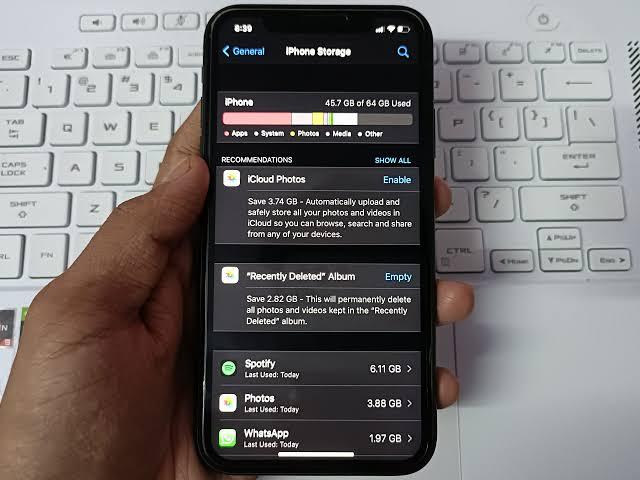
Before deleting anything, find out what is taking up most of your phone's storage.
On many Android phones, you can check this through:
Settings → Storage
The exact location may differ depending on your phone manufacturer and Android version.
You may see categories such as:
- Apps
- Photos and videos
- Documents
- Audio
- Downloads
- System files
- Other files
Knowing what's consuming the most space makes it easier to decide what to clean.
2. Delete Apps You No Longer Use
Unused applications can occupy hundreds of megabytes or even several gigabytes.
Go through your installed apps and ask yourself whether you actually use each one.
If you haven't opened an application for months and don't need it, uninstalling it can immediately recover storage.
Be careful not to remove applications that your phone needs to function properly.
3. Clean Your Downloads Folder
The Downloads folder can quietly accumulate files over time.
You might find:
- Old PDFs
- Images
- Installation files
- Videos
- Documents
- Duplicate files
Open your phone's file manager and review the Downloads folder.
Delete files you no longer need, but check them carefully before doing so.
4. Review Large Videos
Videos often consume more storage than almost any other type of personal file.
Open your gallery or file manager and look for large videos you no longer need.
If a video is important, don't delete it immediately. Back it up to a trusted cloud service, computer or external storage first.
Then you can remove the local copy if you need more space.
5. Remove Duplicate Photos and Files
Over time, you may accidentally download or save the same file multiple times.
You might have several copies of the same photograph, document or video.
Some Android phones and file-management applications provide tools for identifying duplicate or unnecessary files.
Review suggested files carefully before deleting them.
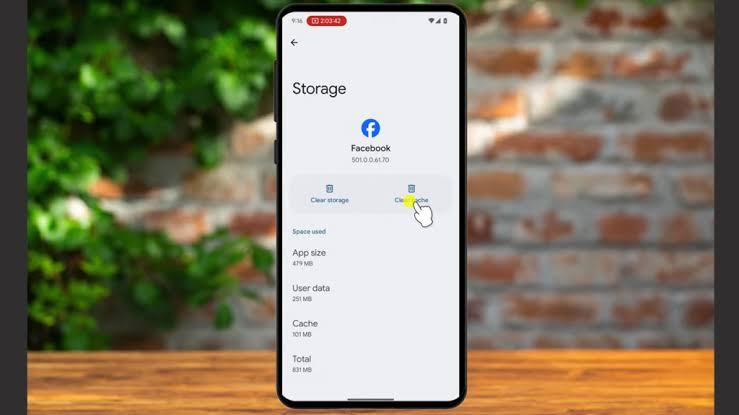
6. Clear App Cache When Necessary
Applications sometimes store temporary files known as cached data.
Cache can help applications load certain content faster, but it can also grow over time.
If an application is using an unusually large amount of storage, check its storage settings.
On many Android devices, you can find this through:
Settings → Apps → Select an app → Storage
You may see an option to clear cached data.
Be careful not to confuse Clear cache with Clear storage/data. Clearing an app's storage or data can remove locally stored information and may sign you out of the application.
7. Clean Up WhatsApp Media
If you use WhatsApp frequently, photos, videos, documents and voice messages can consume a large amount of storage.
Open WhatsApp and review its storage management options.
You can identify large files and media that are no longer needed.
Before deleting anything, make sure important photos, videos or documents have been backed up if you want to keep them.
8. Check Your Social Media Apps
Social media applications can also accumulate temporary files and downloaded media.
If an application is taking up a surprising amount of storage, check its storage information.
You can also review whether you actually need every application installed on your phone.
If you rarely use an app, uninstalling it may be more useful than repeatedly clearing its cache.
9. Move Important Files to Cloud Storage
You don't necessarily need to keep every file stored locally on your phone.
Important photos, videos and documents can be stored using a reputable cloud-storage service.
After confirming that your files have been successfully uploaded and are accessible, you can remove unnecessary local copies to create more space.
Remember that cloud storage also has limits, so keep track of how much space your account has available.
10. Use a Memory Card If Your Phone Supports One
Some Android phones support microSD cards.
If your device supports expandable storage, you may be able to store certain photos, videos or other files on the card.
However, not every phone supports memory cards, and some applications or types of data may still need internal storage.
Check your phone manufacturer's specifications before purchasing a memory card.
11. Don't Install Random "Phone Cleaner" Apps
You may see applications promising to dramatically speed up your phone or clean thousands of unnecessary files.
Be cautious.
Some third-party cleaning applications may request excessive permissions, display aggressive advertisements or provide little benefit.
Start with the storage-management tools already included with your phone.
12. Restart Your Phone
A simple restart won't permanently remove large files, but it can sometimes help clear temporary processes and resolve minor storage-related issues.
If your phone is behaving strangely after you've freed up space, restarting it is a simple troubleshooting step.
How Much Free Storage Should You Keep?
There isn't a universal amount that every Android phone needs, because available storage varies by device and usage.
However, you generally shouldn't allow your internal storage to remain almost completely full.
Keeping some free space gives your phone and applications room to operate and makes it easier to install updates and save new files.
A Simple Storage Cleanup Routine
Every few weeks, take a few minutes to:
- [ ] Check your storage usage.
- [ ] Uninstall unused applications.
- [ ] Review your Downloads folder.
- [ ] Remove unnecessary large videos.
- [ ] Delete duplicate files.
- [ ] Review WhatsApp media.
- [ ] Clear app cache when appropriate.
- [ ] Back up important files.
- [ ] Remove unnecessary local copies.
Final Thoughts
You don't always need a new phone when your Android device starts running out of storage.
A careful review of applications, videos, downloads, documents and messaging media can often recover a significant amount of space.
Most importantly, don't rush to delete everything just to free up storage. Back up important information first, then remove files you genuinely no longer need.
A little regular maintenance can keep your phone organized and prevent storage problems from becoming a constant headache.

Leave a comment
Your email address will not be published. Required fields are marked *