Why Is My Android Phone Getting Slow? 10 Things You Can Do
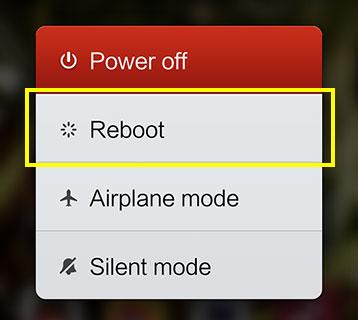
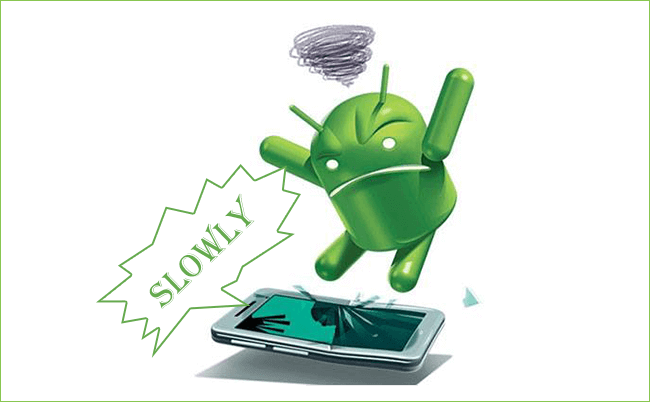
There is something frustrating about a phone that used to feel fast suddenly becoming slow.
An app takes longer to open. The keyboard starts responding late. Videos stutter. You tap a button and spend a second wondering whether the phone actually registered the touch.
The good news is that a slow Android phone doesn't necessarily mean you need to buy a new one.
Sometimes the cause is surprisingly simple.
Your phone could be running low on storage, too many apps could be running in the background, an update could be needed, or an app could simply be causing problems.
Here are some practical things you can try before spending money on a new device.
1. Restart Your Phone
It sounds almost too simple, but start here.
When your phone has been running continuously for a long time, temporary processes and background activity can sometimes contribute to performance problems.
Restarting the device closes active processes and gives the system a fresh start.
If your phone has suddenly become sluggish, restart it before trying more complicated solutions.
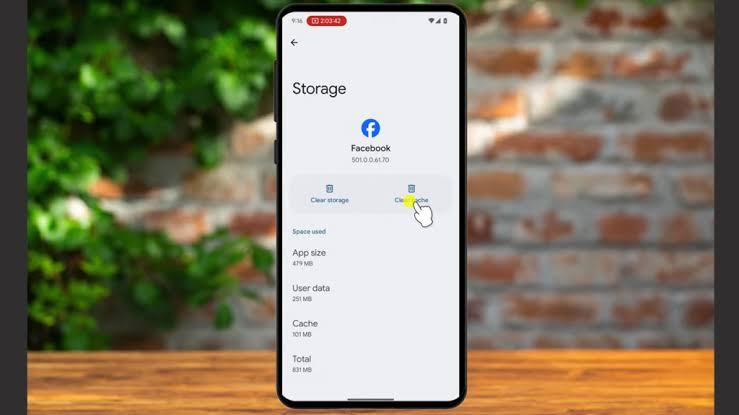
2. Check Your Storage
One of the most common reasons a phone starts struggling is insufficient storage.
Go to your phone's Settings and look for the storage section. The exact location and wording can differ depending on your Android version and manufacturer.
If your storage is almost completely full, consider removing things you no longer need.
Look for:
- Old videos
- Duplicate photos
- Downloaded files
- Unused applications
- Large documents
- Offline videos and music
Be careful before deleting anything important.
A useful habit is to regularly move important photos and files to a trusted backup location rather than allowing your phone's storage to fill completely.
3. Remove Apps You Don't Use
Take a look at the apps installed on your phone.
You may discover several applications you haven't opened in months.
Unused apps take up storage and some may run background processes or send notifications.
If you genuinely don't need an application, uninstalling it can help simplify your phone.
Don't randomly remove system applications, though. Some are necessary for Android or your manufacturer's software to function properly.
4. Update Your Apps
Developers regularly release updates that can include bug fixes, security improvements, compatibility changes, and performance improvements.
Open the appropriate app store on your phone and check whether your applications have pending updates.
If one particular app is unusually slow or constantly crashing, check whether an update is available for that app.
5. Check for System Updates
Your phone's manufacturer may also release Android or system updates.
Look in Settings for the software-update section and check whether an update is available.
Don't assume every update will make an older phone dramatically faster, but keeping your device supported can address bugs and security issues and may improve compatibility with newer applications.
Before major updates, it's sensible to make sure important data is backed up.
6. Identify Apps Causing Problems
Sometimes the phone itself isn't the main problem.
A particular application could be using an unusually large amount of memory, processing power, battery, or background data.
If your phone became slow soon after installing a particular app, that app deserves attention.
You can check the battery or app-management sections of your phone's settings to see whether any application is behaving unusually.
If you've identified a problematic app, try updating it first. If that doesn't help, consider uninstalling it and seeing whether the phone's performance improves.
7. Be Careful With “Phone Booster” Apps
When people search for ways to speed up Android phones, they often encounter applications promising to make a device dramatically faster with one tap.
Be cautious.
Android already manages memory and background processes itself. Some third-party “cleaner” or “booster” applications can provide little benefit while adding another service running on your phone.
Instead of installing an unknown app promising instant performance improvements, start with Android's built-in storage, battery, and app-management tools.
8. Reduce Unnecessary Background Activity
Some apps continue performing tasks when you're not actively using them.
Depending on your phone and Android version, you may be able to control background activity, battery usage, or permissions for individual applications.
However, don't disable everything indiscriminately.
Some background activity is necessary for things such as messaging notifications, synchronization, location services, and other features you actually want.
The goal is to identify unnecessary activity—not to make your phone unusable.
9. Check Your Internet Connection
Sometimes what feels like a slow phone is actually a slow internet connection.
If websites are taking a long time to load or social media videos keep buffering, test another website or application.
You can also switch between Wi-Fi and mobile data to see whether the problem changes.
A phone can be perfectly healthy while an unstable network makes everything appear slow.
10. Consider a Factory Reset as a Last Resort
If you've tried everything else and the phone is still performing badly, a factory reset may be worth considering.
But don't treat this as a quick fix.
A factory reset removes personal data and returns the device to a much cleaner software state.
Back up important information before doing this.
That includes photos, contacts, documents, messages, authentication information, and anything else you don't want to lose.
After the reset, reinstall applications gradually rather than immediately installing hundreds of apps.
That can also help you identify whether a particular application was contributing to the problem.
What If Your Phone Is Still Slow?
If your phone remains extremely slow after these steps, there could be a hardware limitation or a deeper software problem.
Older phones may struggle with newer applications simply because modern software demands more processing power and memory.
Battery health can also matter on some devices, and storage hardware can deteriorate over time.
If the phone is overheating frequently, restarting unexpectedly, showing unusual errors, or experiencing physical damage, consider having it examined by a qualified technician.
Don't Expect Every “Speed Trick” to Work
You'll find plenty of articles online promising that changing one hidden setting will make an old phone feel brand new.
Be skeptical.
There isn't a universal setting that can magically turn an entry-level phone from several years ago into a modern flagship.
The biggest improvements usually come from addressing the actual problem:
Free up storage.
Remove problematic apps.
Keep software updated.
Reduce unnecessary background activity.
Replace aging hardware when necessary.
Final Thoughts
A slow Android phone doesn't automatically mean it's time to buy another one.
Before spending money, take a few minutes to investigate what is actually causing the problem.
Start with the simple steps: restart the phone, check storage, remove unused apps, update your software, and look for applications behaving unusually.
If those steps don't help, you can move on to more advanced troubleshooting or professional assistance.
And perhaps the best long-term habit is simple:
Don't wait until your phone is completely full and struggling before you start taking care of it.
A little maintenance from time to time can save you a lot of frustration later.
This article is part of Alvonbot.com's Technology and Digital Skills series.

Leave a comment
Your email address will not be published. Required fields are marked *